Working the canvas
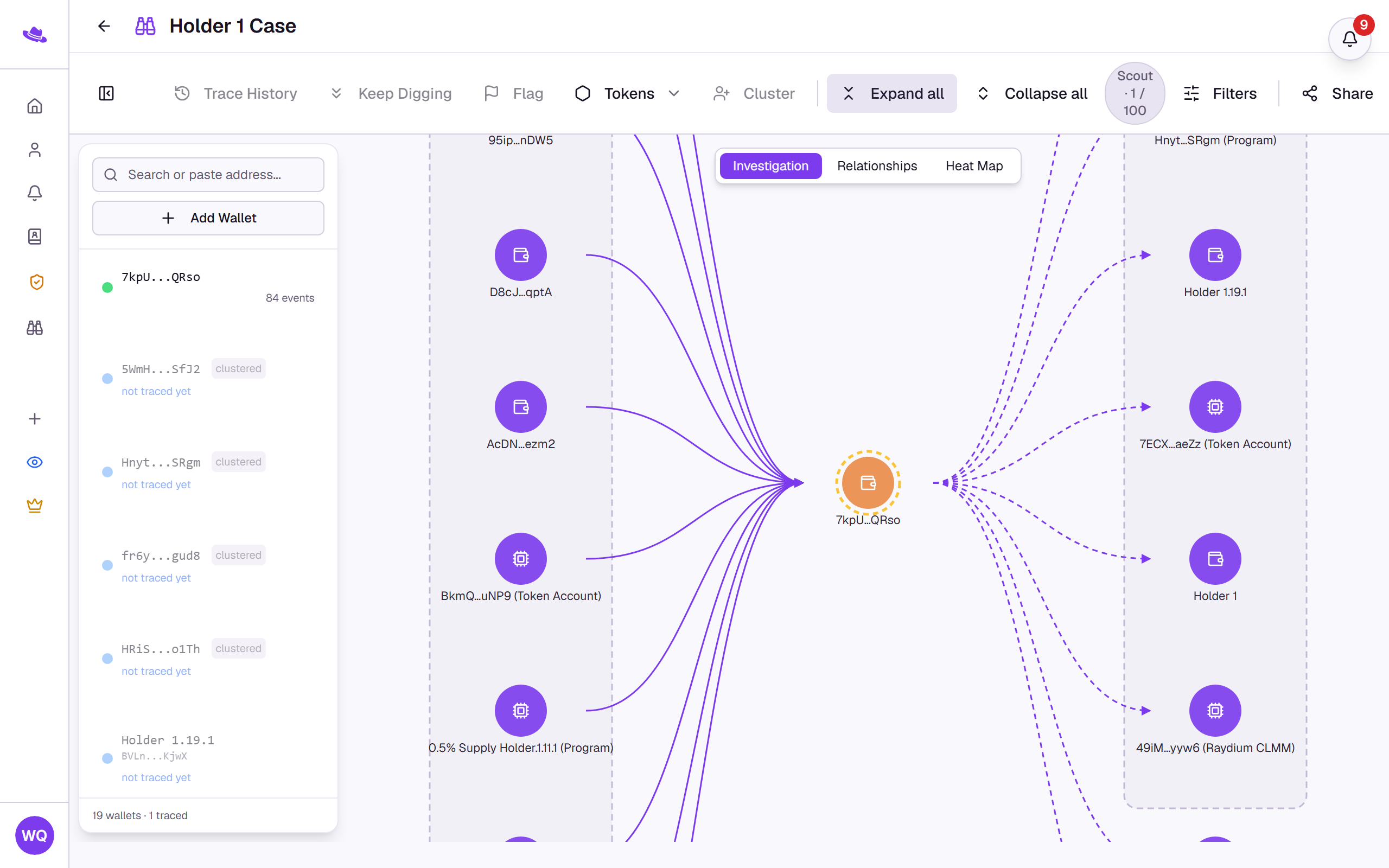
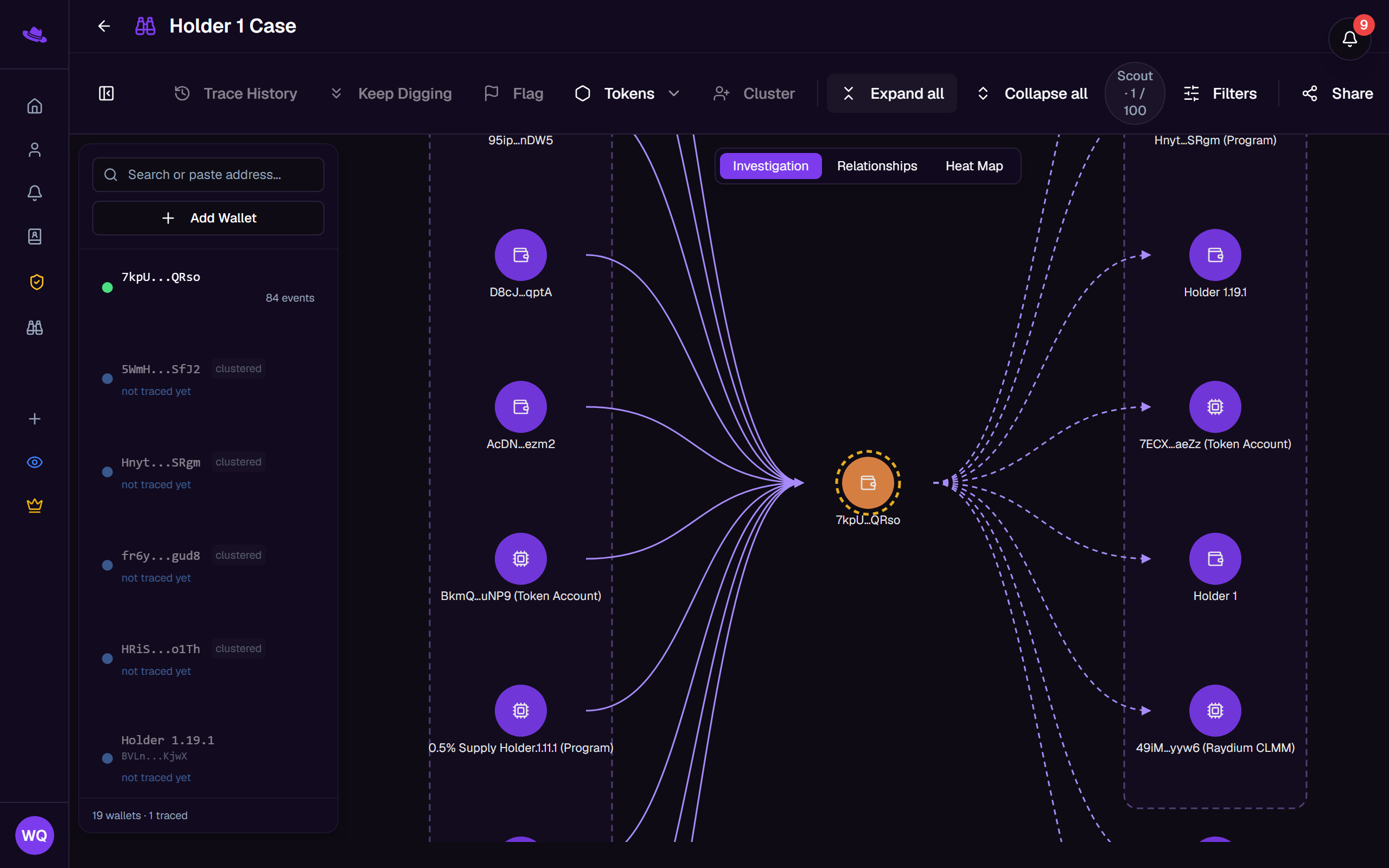
An investigation has three views of the same wallets and connections, switched from the pill at the top of the canvas: Investigation, Relationships, and Heat Map. This page covers how the Investigation canvas groups and hides wallets to stay readable, then the other two views.
What you'll see
Clusters
As an investigation grows, wallets the same number of hops from your starting wallet that share a source or destination, and have nothing distinguishing them (no label, flag, or exchange tag), collapse into a single node reading its member count and "click to expand." Select it to expand the group into its individual wallets inside a dashed box; select the box's collapse icon, or the node again, to fold it back. Expand all and Collapse all in the toolbar do this for every cluster on the canvas at once. This grouping is purely visual: it says nothing about ownership and isn't saved. See Scout canvas grouping for how it's decided.
Groups
To group wallets yourself, select two or more (shift-click or Ctrl/Cmd-click adds to the selection) and choose Group from the bar that appears at the bottom of the canvas, or press Ctrl+G (⌘G on a Mac). The group appears in the wallet panel, where you can rename or delete it. The same selection bar can also group just a wallet's incoming or outgoing counterparties, or remove wallets from any group entirely; hovering a wallet in the panel reveals the same actions for that one wallet alone.
The toolbar's own Cluster button doesn't build a group yet: selecting it just shows a coming-soon message. Use the multi-select Group action above instead.
Hiding wallets
Hide a wallet from the canvas with the eye icon that appears when you hover it in the wallet panel, or select several and choose the eye icon in the selection bar. A hidden wallet stays in the investigation, shown struck through in the panel, and reappears the moment you toggle it back.
Relationships and Heat Map
- Relationships draws concentric rings around your starting wallet, one per hop distance. A Rings control switches between showing 3, 5, or 7 rings, and hovering a wallet shows the strength of its connection.
- Heat Map lays every active wallet out as a grid, with each cell's color showing how much two wallets interacted. Metric switches between Combined, Frequency, and Volume, and Order groups the grid by detected community, hop distance, or address.
Common questions
A wallet shows twice on the canvas with a small return-arrow badge. That's the same wallet drawn a second time so a connection that loops back doesn't tangle the layout. Select either copy to inspect the one underlying wallet.
Selecting Cluster in the toolbar just shows a coming-soon message. It's a placeholder for now and builds no group. Group wallets manually as described above, or rely on the automatic clusters that already collapse busy branches.