The wallet modal
Select any wallet's address, on a tracking page's Tracked Wallets table or wherever else one appears as a link, and Wallet Sleuth opens its full profile in a modal: a header identifying the wallet, and four tabs, Token, Portfolio, Analytics, and Forensics. It opens on the Token tab.
What you'll see
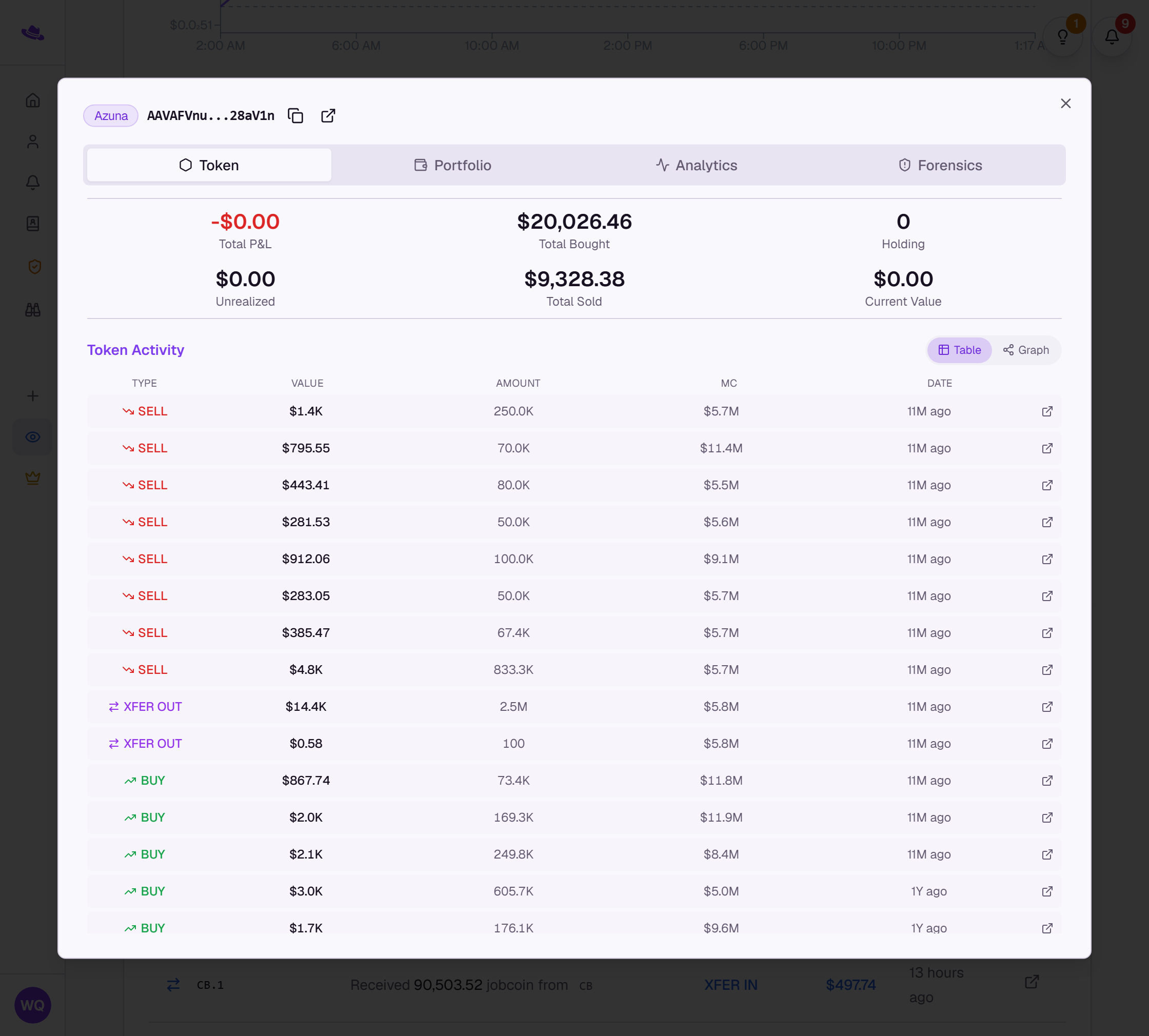
Header
- The wallet's nickname, when it has one on the page you opened it from, followed by its address, truncated.
- Copy, which copies the full address, and an explorer button ("View on Solscan" for Solana wallets, "View on Basescan" for Base) that opens it on its chain's block explorer.
- On an audit, a token picker in place of a fixed token, since an audited wallet can hold many; pick one to trace it on the Token and Analytics tabs.
- A back arrow, once you've navigated into a connected wallet from the Token tab's activity graph, to return to the wallet you started from.
Portfolio tab
- The wallet's total portfolio value, how many tokens it holds, and its native balance (SOL, or ETH on Base and Ethereum).
- Refresh, which pulls a new snapshot.
- Holdings: every token the wallet holds, with its amount, value, and share of the wallet.
- Recent Trades: the wallet's latest buys, sells, and transfers across every token, not just the one this page tracks, each linking to its transaction on the block explorer.
Analytics tab: names and aliases
Further down the Analytics tab, below the Trader Behavior section, Wallet Sleuth shows how this wallet is known elsewhere:
- Your names: nicknames you've given this wallet across your own tracking pages.
- Also known as: nicknames other users have given it, and how many times each has been used.
- A cluster badge, when the wallet is linked to others in a relationship cluster.
- View in Address Book, which opens the wallet's entry in your Address Book.