Contacts and sync
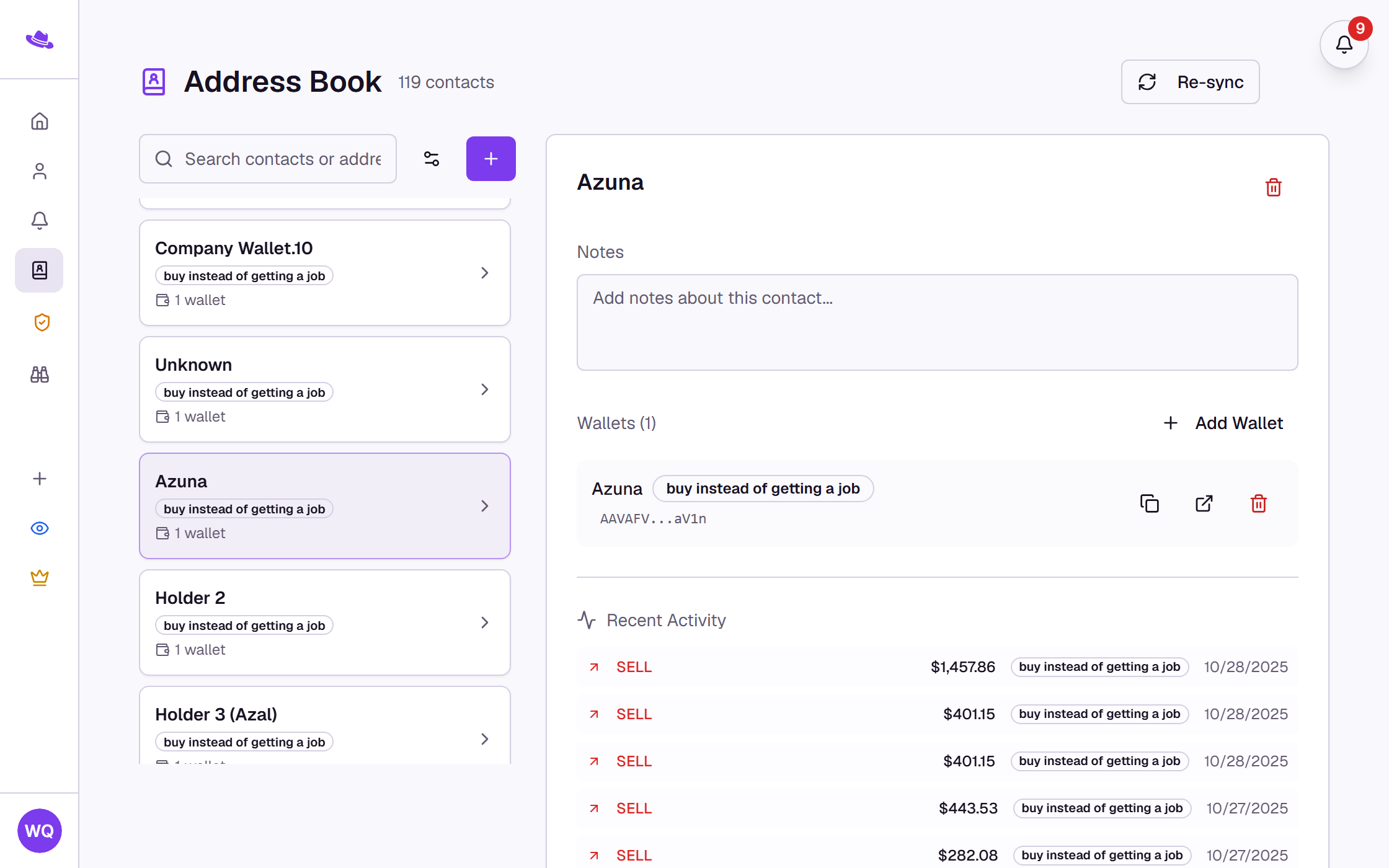
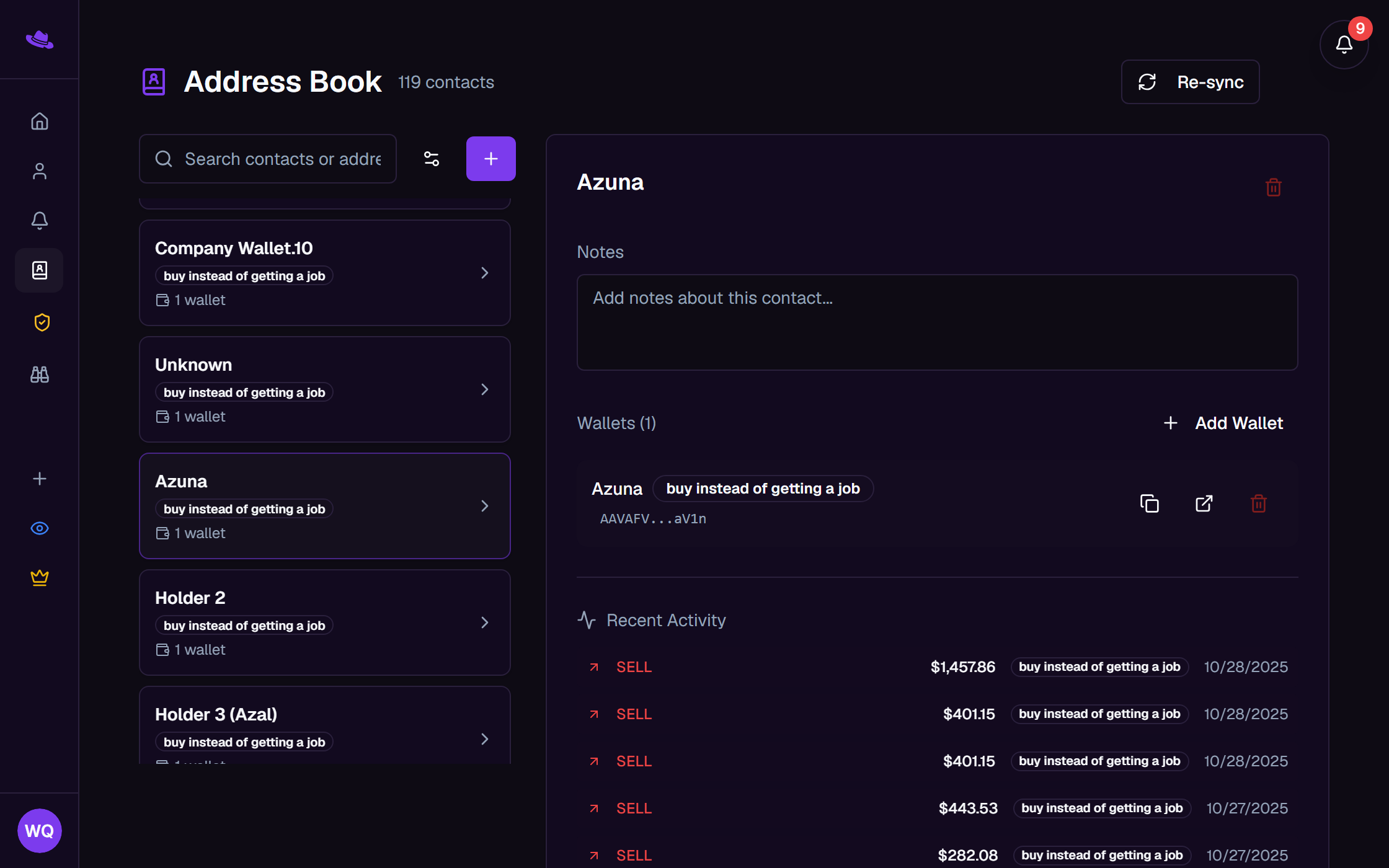
A contact in your address book groups one or more wallet addresses under one name, with room for your own notes and a feed of recent activity. Most contacts arrive on their own, built from the nicknames you've already given wallets; you can also create one from scratch, add wallets to it, and merge contacts together when you find the same person under two names.
Steps
How your address book fills in
The first time you open the Address Book, Wallet Sleuth reads every nicknamed wallet across the tracking pages you own or belong to (and any nickname you'd already saved directly) and groups them into contacts. Wallets are grouped together when they share an address, share a nickname, or are already linked in Wallet Sleuth's identity graph, so the same person named differently on two pages can still land in one contact.
To do this again later, select Re-sync at the top of the page. Re-syncing rebuilds your address book from your current nicknames from scratch: it removes every contact you have, including any you created by hand and any notes you've written, and replaces them with fresh contacts grouped from nicknames as they stand today.
Create a contact by hand
- Select + next to the search box.
- Wallet Sleuth creates a contact named "New Contact" and opens it for editing.
- Type over the name to rename it; it saves automatically a couple of seconds after you stop typing.
Add wallets to a contact
- Select a contact to open it.
- Select Add Wallet.
- Enter the wallet's address and, optionally, a nickname, then select the save icon.
Each wallet in a contact shows its nickname, a badge naming the tracking page it came from (or "manual" for one you added here), and its address. A copy icon copies the address, an external-link icon opens it on its block explorer, and a trash icon removes it from this contact only; none of these touch the wallet on its tracking page.
Notes
Every contact has a Notes field for anything you want to remember about it. Type into it and it saves on its own a couple of seconds after you stop typing, the same way the name does.
Recent Activity
Below its wallets, a contact shows Recent Activity: transactions across every wallet in the contact, pulled from the tracking pages you can access and shown newest first, each with its buy, sell, or transfer icon, USD value, the tracking page it happened on, and the date. A contact with no wallets, or no activity yet, shows a message there instead.
Merge contacts
- Select the gear icon (Manage contacts) next to the search box.
- Check two or more contacts.
- Select Merge.
- Edit the name for the combined contact if you want, then confirm.
Merging combines every wallet from the selected contacts into one (dropping any duplicate), concatenates their notes, and deletes the rest. It also feeds Wallet Sleuth's identity graph: merging two contacts is treated as a human confirmation that their wallets belong to the same person, the strongest signal the graph uses when clustering wallets, the same way merging or nesting wallets on a tracking page does. See Wallet relationships and clustering for how that scoring works. Select X to leave manage mode without merging anything.
What you'll see
Tips
- The Search contacts or addresses... box filters your list by contact name, wallet address, or the tracking page a wallet came from.
- Importing a contact's nickname back onto a tracking page's wallets goes the other direction: see Nicknames and tags.
Common questions
I merged the wrong contacts together. There's no separate undo. Add the wallets you want back out to a new contact (or a new one you create) and remove them from the merged contact; each removal only affects the address book, not any tracking page.
Re-syncing removed a contact or note I added by hand. Re-syncing rebuilds your whole address book from your current nicknames, so anything that didn't come from a nickname, including manually created contacts and notes, doesn't survive it.
Related
- Nicknames and tags: naming wallets on a tracking page, and importing your address book's names back onto one.
- The wallet modal: jump straight to a wallet's address book contact with View in Address Book.
- Wallet relationships and clustering
- Your dashboard