Nicknames and tags
Every tracked wallet gets a nickname, whether you set one or Wallet Sleuth generates one, and can carry any number of tags for filtering and organization.
Steps
Before you start. Renaming a wallet, applying names from your address book, and creating or managing tags all need Full Access: you must own the page or be a member with that access level. Selecting an existing tag chip to filter the table doesn't need it.
Rename a wallet
- Select the wallet's row (or Ctrl+click to select several).
- In the bar that appears, select Nickname.
- Type the new nickname. With one wallet selected, the field starts filled with its current nickname; with several selected, every one of them gets whatever you type.
- Press Enter, or select the checkmark, to save.
A wallet you haven't named shows a generated nickname based on its address (or, for a wallet added through Quick Add Top 50, its share of supply). While adding a wallet whose address is already tracked, Wallet Sleuth shows its current nickname and offers a rename right there instead of creating a duplicate.
Apply names from your address book
- From the toolbar above the wallet table, select Import from Address Book.
- Wallet Sleuth lists every wallet on this page that also appears in your address book, showing your saved nickname next to the page's current one, and flags any conflict.
- Check the rows you want to apply, then select Apply Nicknames; its label counts how many you've checked.
This only renames wallets already on the page; it doesn't add new ones.
Create and manage tags
- Above the wallet table, select Create Tag, type a name, and confirm. Wallet Sleuth gives it a color automatically.
- Select a tag chip to filter the table to wallets carrying that tag; select it again to remove the filter. Selecting more than one chip combines them.
- Select the gear button next to Create Tag to open Manage Tags, where you can recolor, rename, or delete any tag. Deleting a tag removes it from every wallet that has it.
Tag one or more wallets
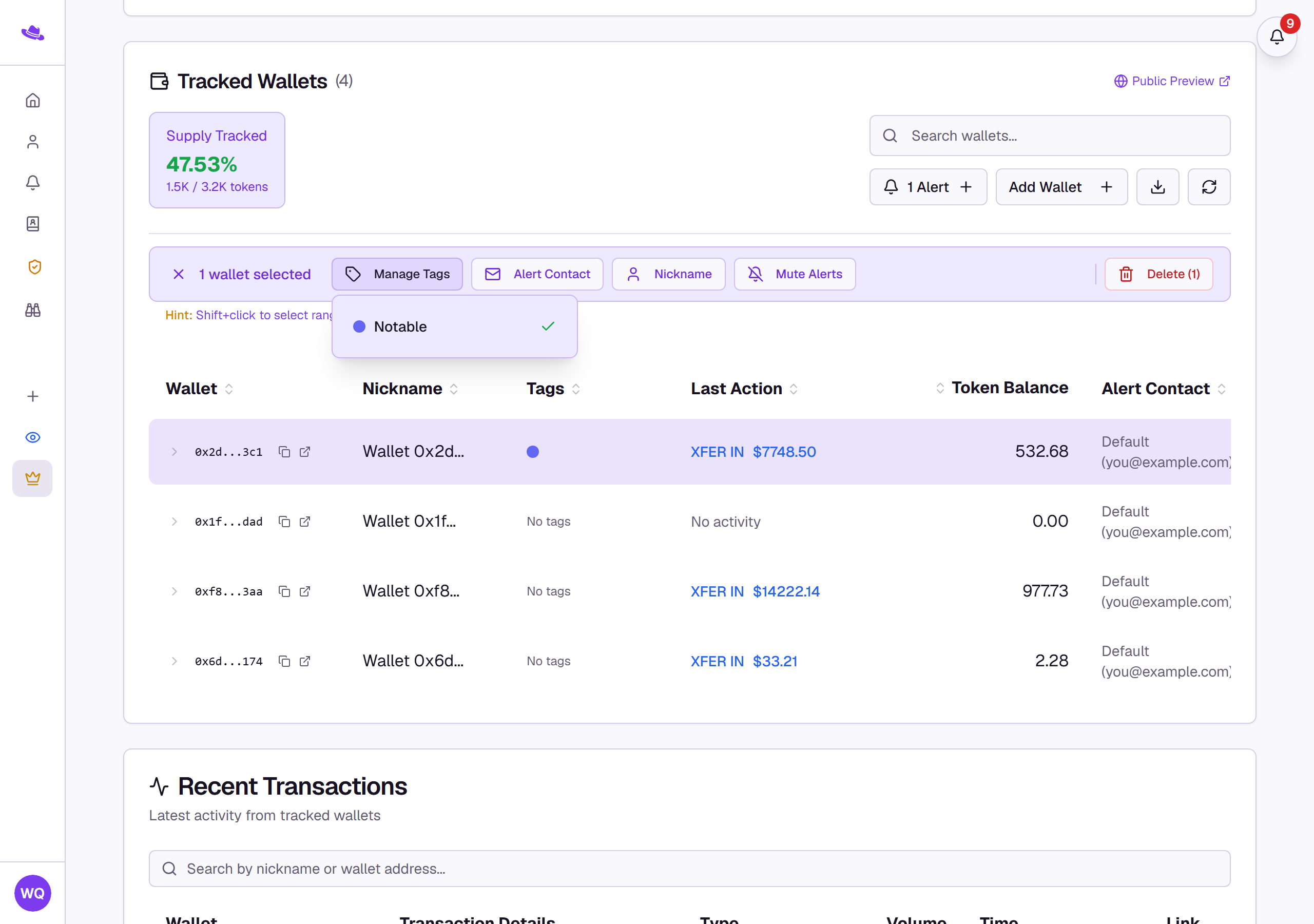
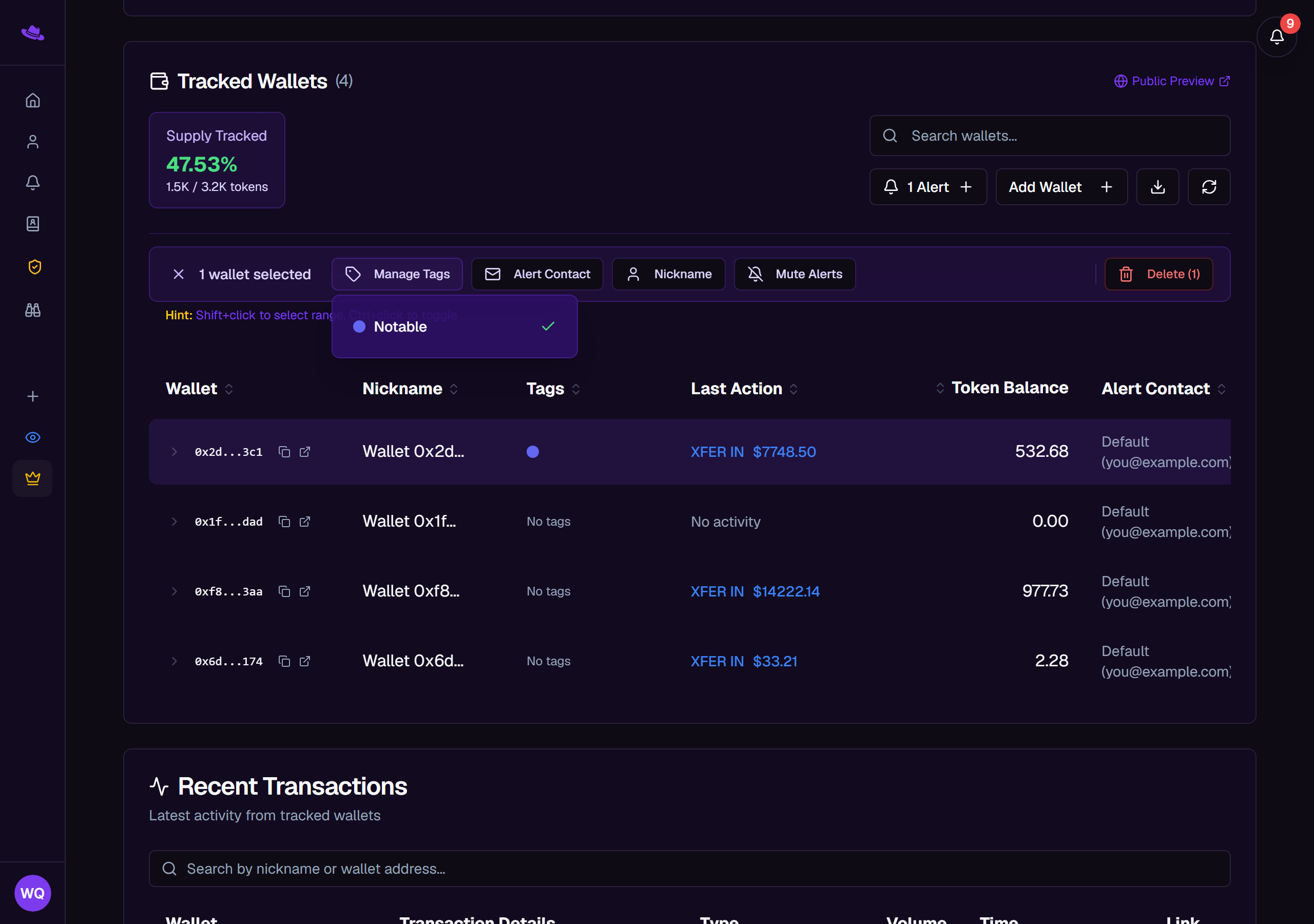
- Select one or more wallet rows.
- In the bar that appears, select Manage Tags.
- Select a tag to add it to every selected wallet that doesn't already have it, or to remove it if all of them do. A dash next to a tag means only some of the selected wallets carry it.
Wallet Sleuth applies two tags on its own: Auto-named for wallets added through Quick Add, and Program Account for addresses its own detection recognizes as a program rather than a personal wallet. You can also assign tags to a wallet while adding it, whether through the manual form or a bulk import's row selection.
What you'll see
Common questions
I don't see Nickname, Create Tag, or Manage Tags. These need Full Access. You need to own the page, or be a member whose access level is set to Full Access rather than Read Only; a Read Only member can still select an existing tag chip to filter the table.
I can't find a way to rename a wallet by clicking directly on it. Renaming goes through the selection bar: select the row, then select Nickname. This also works for one wallet at a time.
A wallet I imported from the address book didn't get renamed. Only the rows you check in the import dialog are applied; an unchecked or conflicting row is left as-is until you confirm it.