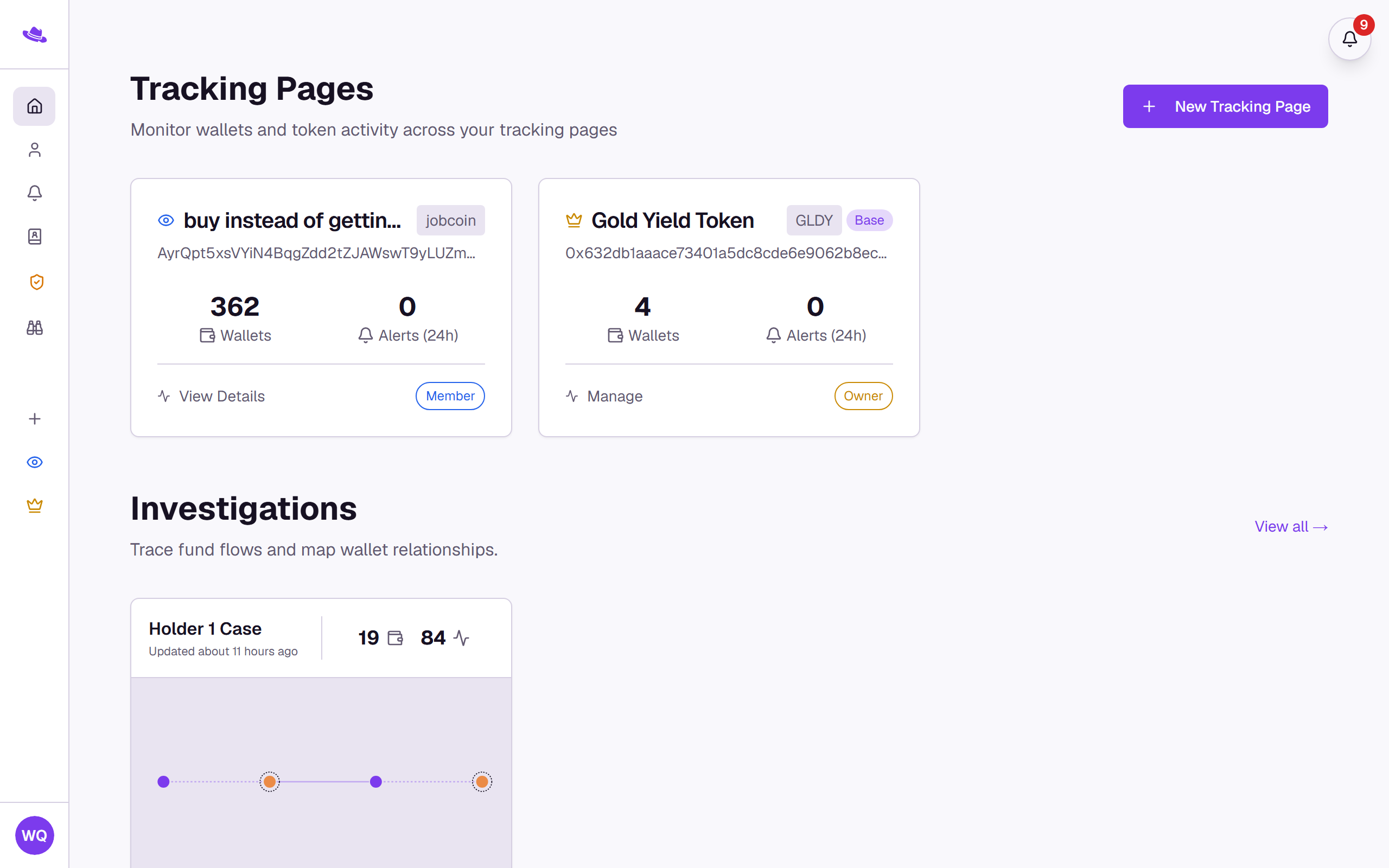
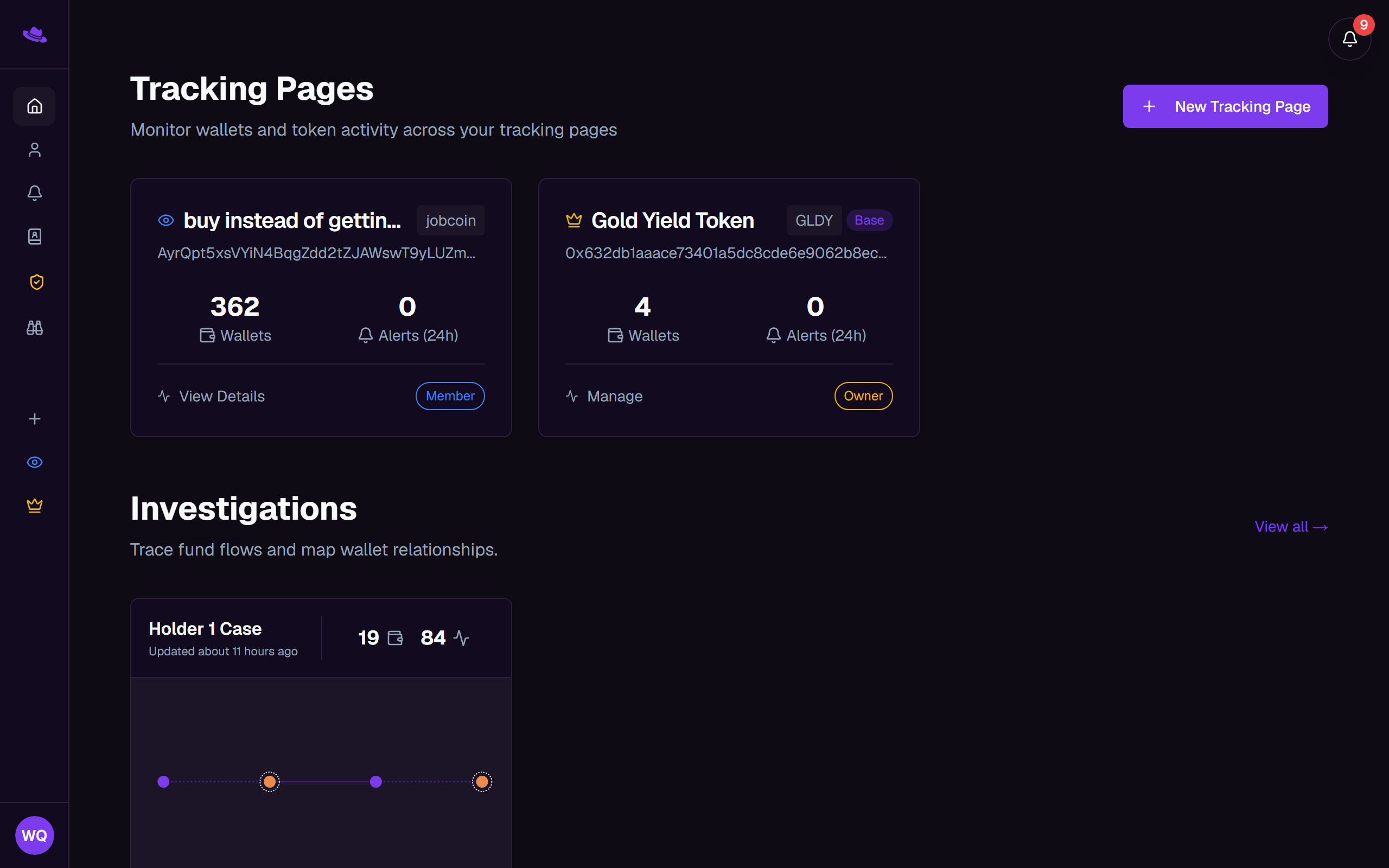
Your dashboard is where you land after signing in: every tracking page you can see, your Scout investigations, and the sidebar that reaches everywhere else in the app.
What you'll see
Tracking Pages: one card per page you own or belong to. A crown icon marks a page you own; an eye icon marks a page you're a member of. Each card shows the wallet count and alerts from the last day, and a badge reading "Owner" or "Member". If you don't have one yet, the section shows "No tracking pages yet" with a button to create one.
Investigations: your active Scout investigations. With none yet, you'll see a prompt to start one.
A floating bell button in the top-right corner opens your recent notifications; a red badge on it shows how many are unread.
A floating Ask the assistant button sits near the bottom corner of every screen (press the question mark key to open it too). Ask it how something works or what you are looking at, and it can point you to the right page and take you there. It only explains and navigates, and it never changes anything in your account.
The sidebar lists Dashboard, Profile, Alert Logs, Address Book, Audits, and Scout, followed by a Tracking Pages section with a shortcut to start a new page and a link to each page you can see.
At the bottom of the sidebar, your user card shows your name, email, and Scout credits, with Home and Log out side by side.