Alert logs
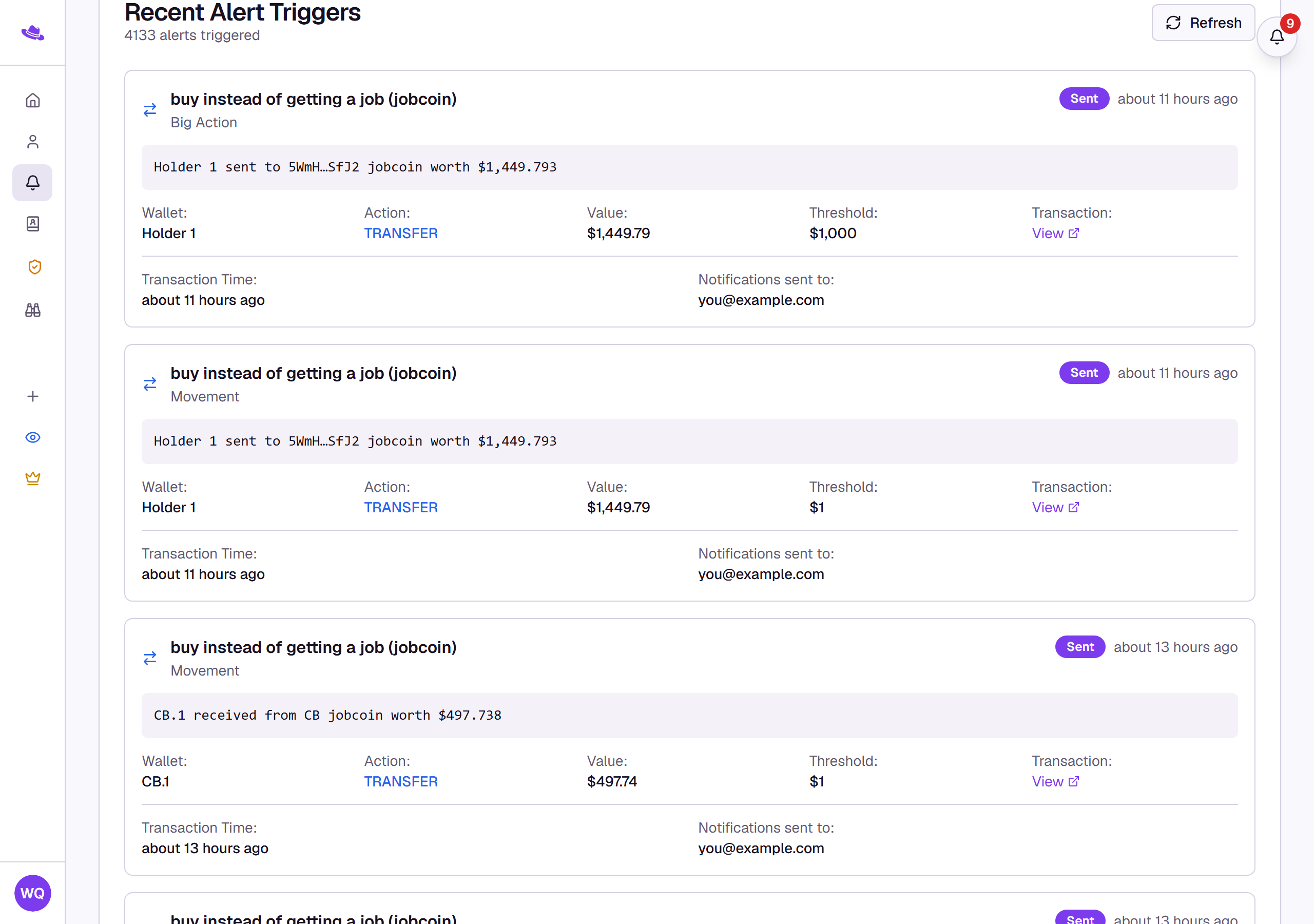
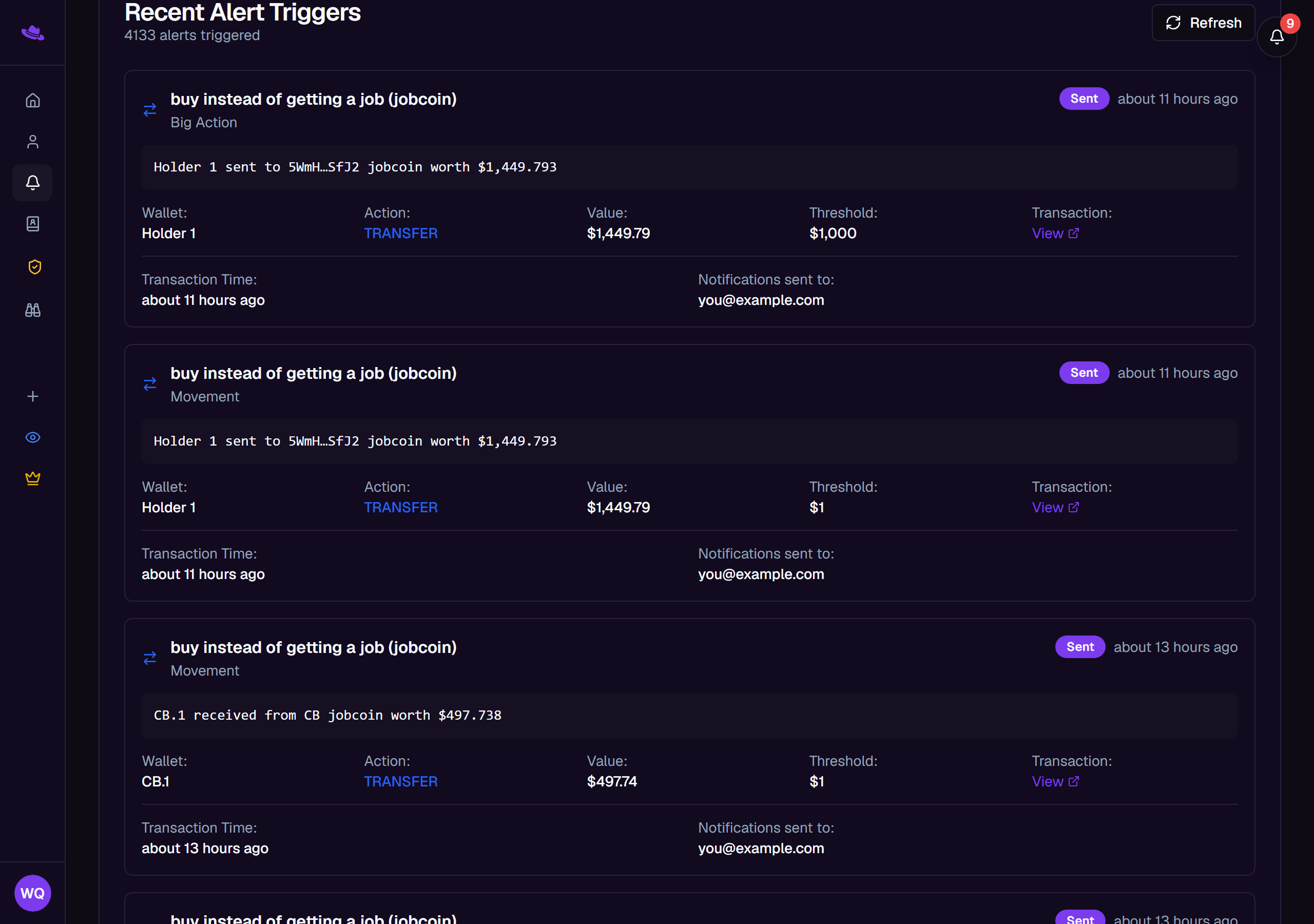
Alert Logs, reachable from the sidebar, lists every alert Wallet Sleuth has fired across every tracking page you own or belong to, newest first.
Steps
- From the sidebar, select Alert Logs.
- Each entry under Recent Alert Triggers shows the tracking page and token it fired on, the alert's name, and how long ago the underlying transaction happened, plus the wallet, action (BUY, SELL, or TRANSFER), the transaction's value against the alert's threshold, a View link to the transaction, and who the notification went to.
- Select Refresh to pull in anything that's fired since you opened the page.
What you'll see
Tips
- The Test Alert System card above the log lets you fire a synthetic alert through your configured channels without waiting for real wallet activity, useful for confirming a contact or channel actually works.
Common questions
What does the Sent / Test Mode badge mean? A run through the Test Alert System always logs as Sent, even if none of its channels actually went through; check that form's own results for the real per-channel outcome. Test Mode only appears on a genuine alert, one triggered by real wallet activity, that failed to reach every one of its configured channels, so it's worth a look if you see it there.