Alert rules
An alert rule watches the wallets on a tracking page and fires whenever a transaction crosses a dollar threshold you set, for a buy, a sell, a transfer, or any combination of the three.
Steps
Create a rule
- From the tracking page, select Settings, then Alerts in the sidebar (see Page settings).
- Select Create Alert (or Create First Alert if the page has none yet).
- Enter an Alert Name, then optionally a Buy Threshold (USD), Sell Threshold (USD), and Transfer Threshold (USD). Leave one blank and that action never triggers this rule.
- Under Apply to Wallets, choose All tracked wallets, or Specific wallets and check the ones you want.
- Select Create Alert to save it.
Manage an existing rule
Each rule shows as a card listing its thresholds, color-coded green for buy, red for sell, and blue for transfer, and which wallets it applies to.
- Select the status chip, or the toggle switch, to turn a rule Active or Inactive without deleting it. Wallet Sleuth only evaluates active rules.
- Select the pencil icon to edit its name, thresholds, or wallets.
- Select the trash icon to delete it, then confirm in the dialog that appears. Deleting a rule stops all notifications for it and can't be undone.
What you'll see
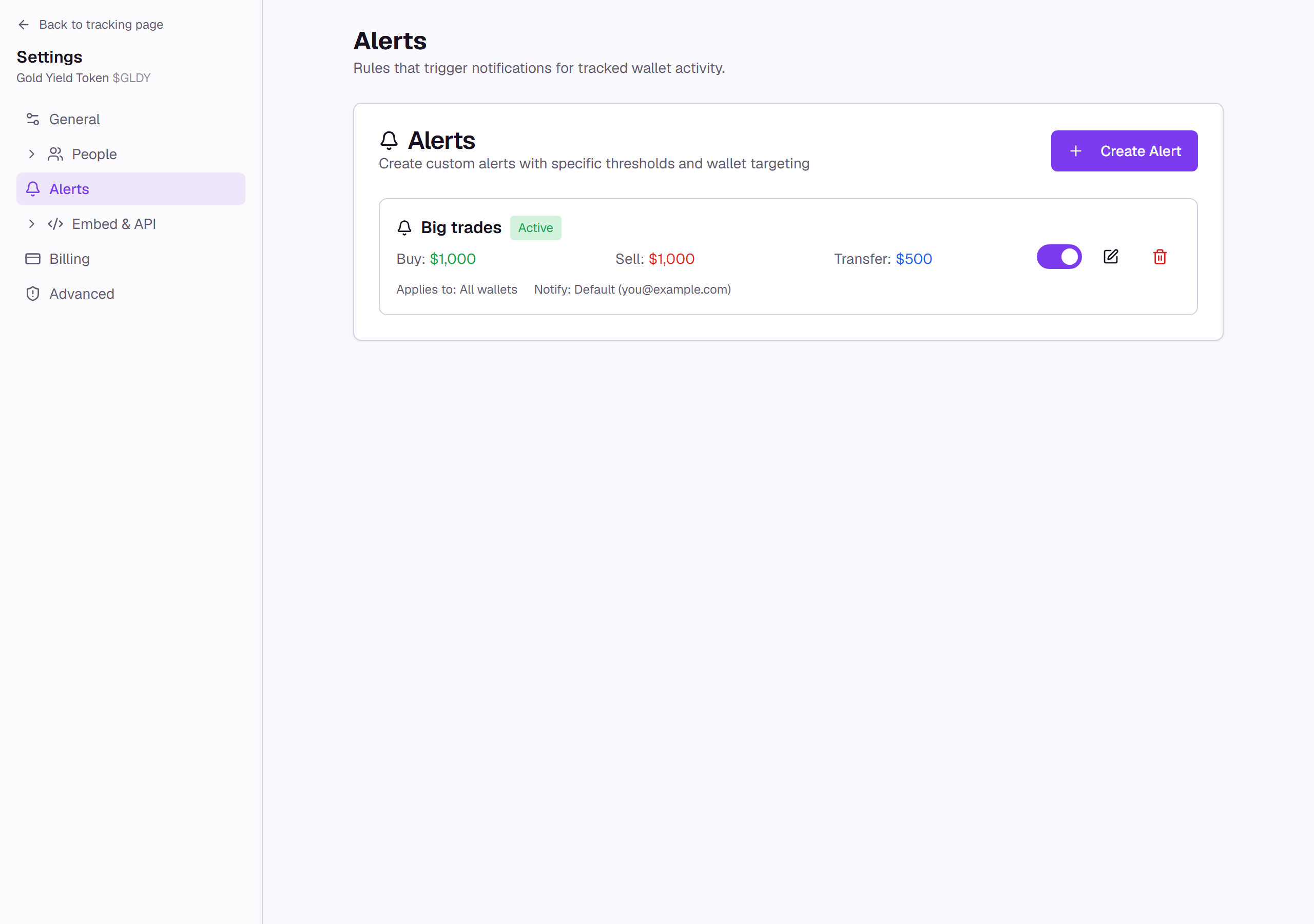
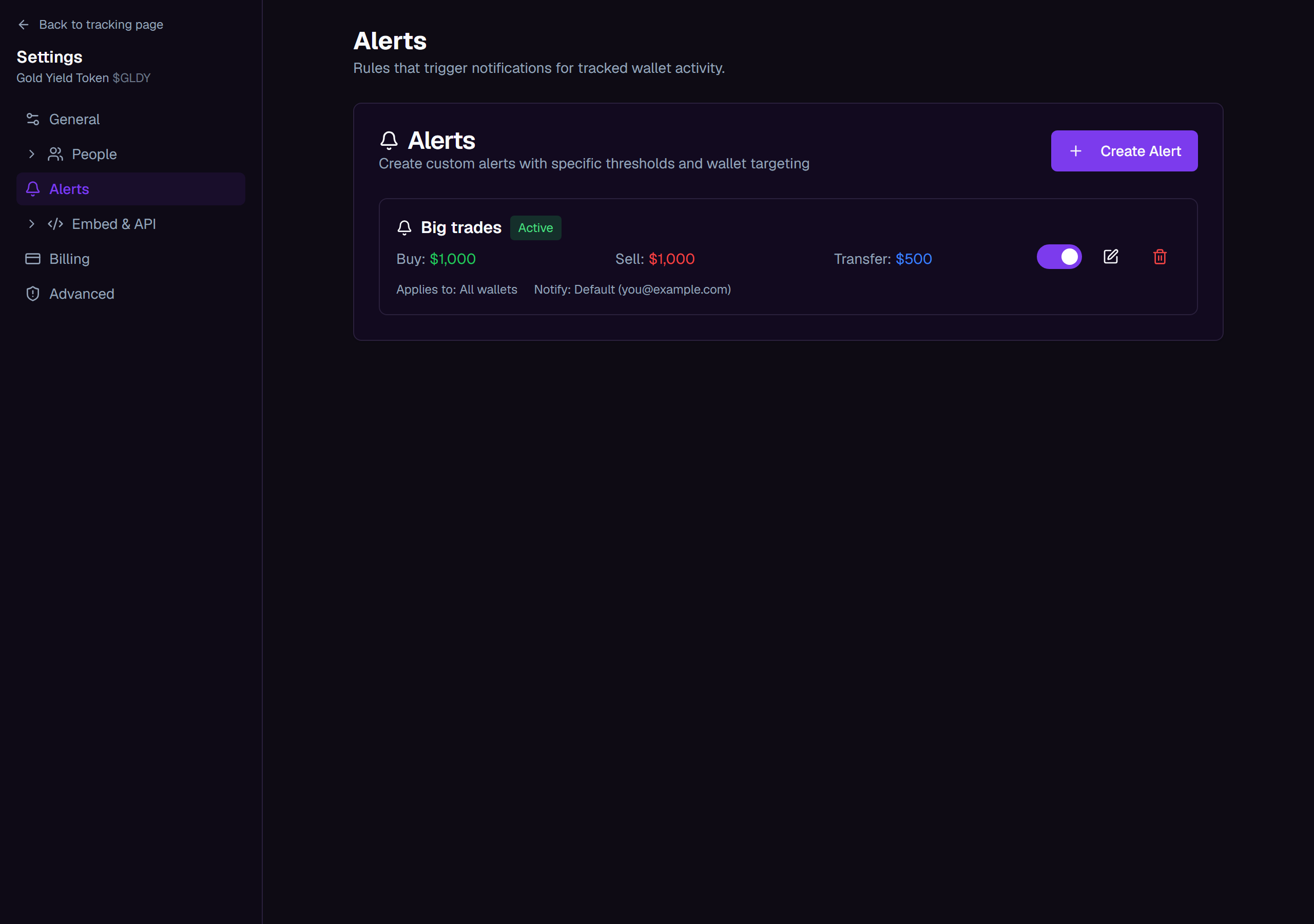
Each card also shows a Notify line, but it always reads as the page owner's default. Who actually receives a notification isn't set on the rule: Wallet Sleuth resolves that per wallet instead, using any contact group or individual Alert Contact assigned to it, and falling back to the tracking page owner's own profile if neither is set. See Contact groups to assign one.
Tips
- A rule with every threshold left blank never fires; at least one needs a value above zero.
- Muting a wallet's alerts (from the wallet table's batch actions) silences every rule for that wallet, without touching the rule itself. See Batch actions and the table.
Common questions
Can I pick who gets notified from an alert rule? No. Recipients are set at the wallet level, through an individual Alert Contact or a contact group, not on the rule. See Contact groups.
Why does disabling a rule leave it in the list instead of removing it? The status toggle sets it Inactive rather than deleting it, so you can turn it back on later without re-entering its thresholds and wallets.