Notification channels
When an alert fires, Wallet Sleuth can reach you several ways at once. Email works automatically; the others need a one-time setup, mostly from your Profile.
Steps
Every alert contact with an email address on file gets an email when an alert fires. There's no separate toggle; it's always on for any contact that has one.
SMS
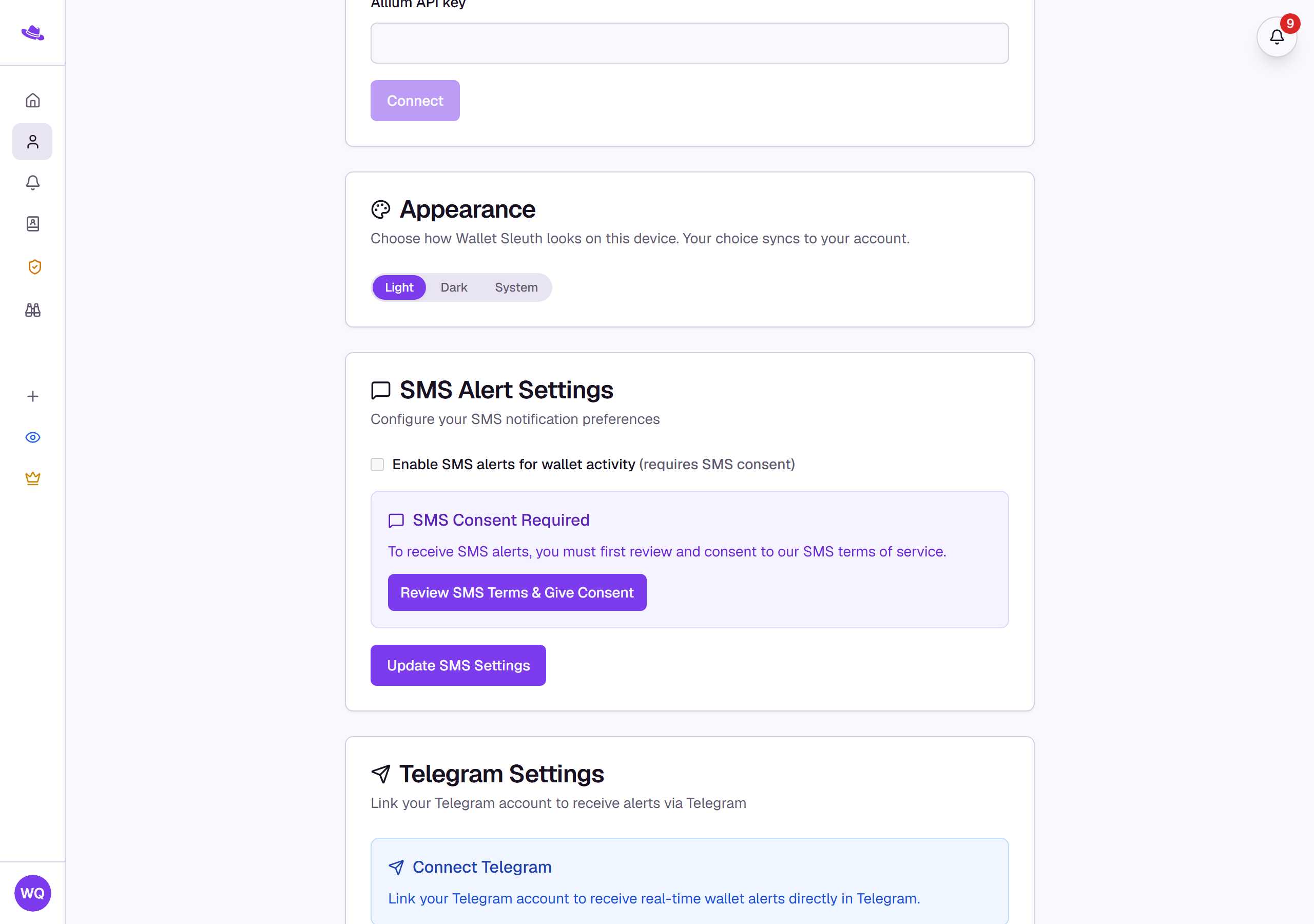
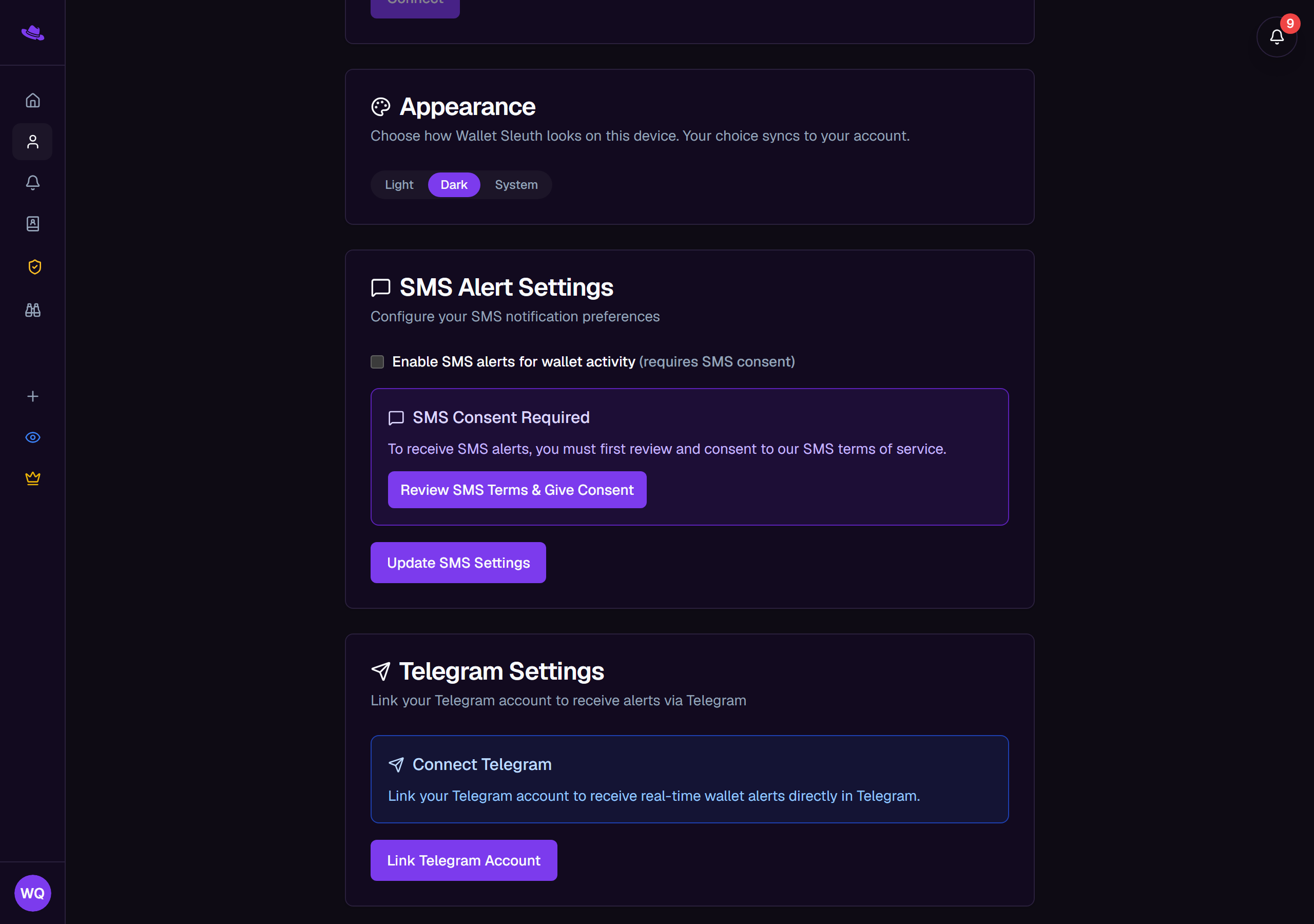
- On your Profile, under Profile Information, the Phone Number field stays disabled until you give consent: select Review SMS Terms & Give Consent.
- Once you've consented, enter your number in Phone Number and select Update Profile.
- Under SMS Alert Settings, check Enable SMS alerts for wallet activity and select Update SMS Settings.
In-app notifications
The bell icon in the sidebar shows a badge once you have unread notifications. Select it to open the notifications panel, listing each alert's title, message, and how long ago it fired; select Mark all read to clear the badge, or select a notification to jump to its tracking page.
Telegram
- On your Profile, under Telegram Settings, select Link Telegram Account.
- Wallet Sleuth generates a one-time linking code and shows instructions: open Telegram, message the bot, and send it
/linkfollowed by the code. The page updates on its own once the link completes, you don't need to refresh it. - Once linked, the card shows Telegram Linked with your username; select Unlink Telegram to remove it.
Mobile push
On the Wallet Sleuth mobile app, a Push Notifications toggle under Settings puts alerts on your device's lock screen. It's a mobile-only setting tied to that device; there's no equivalent toggle on the web app.
What you'll see
Common questions
Do I have to set up SMS or Telegram to use Wallet Sleuth? No, both are opt-in. Email and in-app notifications work with no setup at all.
Does linking Telegram or enabling SMS affect other tracking pages? Yes, these are account-level settings, so they apply everywhere you're an alert contact, not just on one page.