Contact groups
A contact group is a saved set of people you can assign to one or more wallets at once, so every alert on those wallets notifies the whole group instead of naming each person individually.
Steps
Create a group
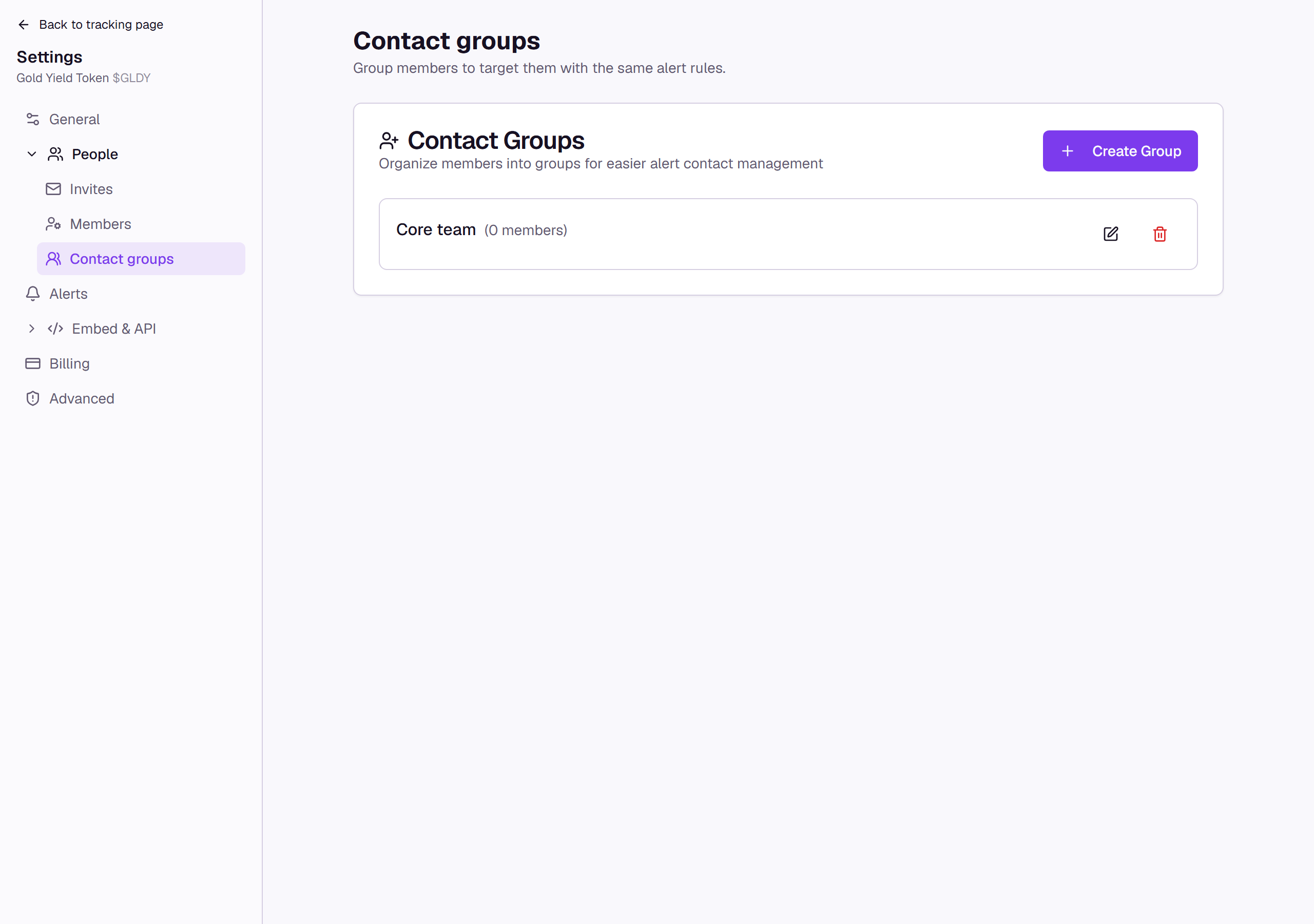
- From the tracking page, select Settings, then People, then Contact groups in the sidebar (see Page settings).
- Select Create Group.
- Enter a Group Name, then choose members under Group Members.
- Optionally paste a Discord Webhook URL (it must start with
https://discord.com/api/webhooks/) to also post this group's alerts to a Discord channel. - Select Create Group.
Edit or delete a group
- Select the pencil icon on a group to rename it, change its members, or update its Discord webhook.
- Select the trash icon to delete it, then confirm in the dialog that appears.
Assign a group, or a person, to a wallet
A contact group does nothing on its own until you assign it to a wallet. From the tracking page's wallet table, select one or more wallets and choose Alert Contact in the bar that appears; the dropdown lists your Contact Groups above your Individual Contacts, and picking either becomes that wallet's alert recipient. A wallet holds one assignment at a time: picking a group replaces any individual contact it had, and picking an individual replaces any group. You can also set a wallet's alert contacts while adding it. See Batch actions and the table and Adding wallets for the full mechanics.
What you'll see
Common questions
What happens to a wallet's alerts if I delete a group assigned to it? The wallet keeps its reference to the group, but a deleted group is skipped when Wallet Sleuth resolves who to notify, so the wallet falls back to the page owner instead.
Can I assign a group to more than one wallet? Yes. Select every wallet you want covered before choosing Alert Contact, and the group is assigned to all of them at once.