Reviewing findings
Every audit raises two kinds of findings: Risk findings, each carrying a severity band that feeds the audit's grade, and Interesting findings, which are descriptive and never affect the grade. Reviewing a finding is your own judgement layered on top of the engine's output; it never changes what the engine found.
Steps
- From the report, select the Findings tab, or scroll to Notable findings on the Overview tab.
- Use the Open, Resolved, Hidden, and All filter to narrow by review status, and the Risk / Interesting and severity buttons to narrow by finding type. Select Legend to see what each severity and finding-type icon means.
- Select a finding card to open it.
- In the dialog, read what was flagged, why it gets flagged, how to mitigate it, and its effect on the grade, then check the flagged wallets underneath.
- Under Review, select Resolved or Hidden to mark the finding; moving it there from a different status asks for a note explaining why, then select Save. Reopening it with Open, or reasserting its current status with Confirm current status, needs no note.
What you'll see
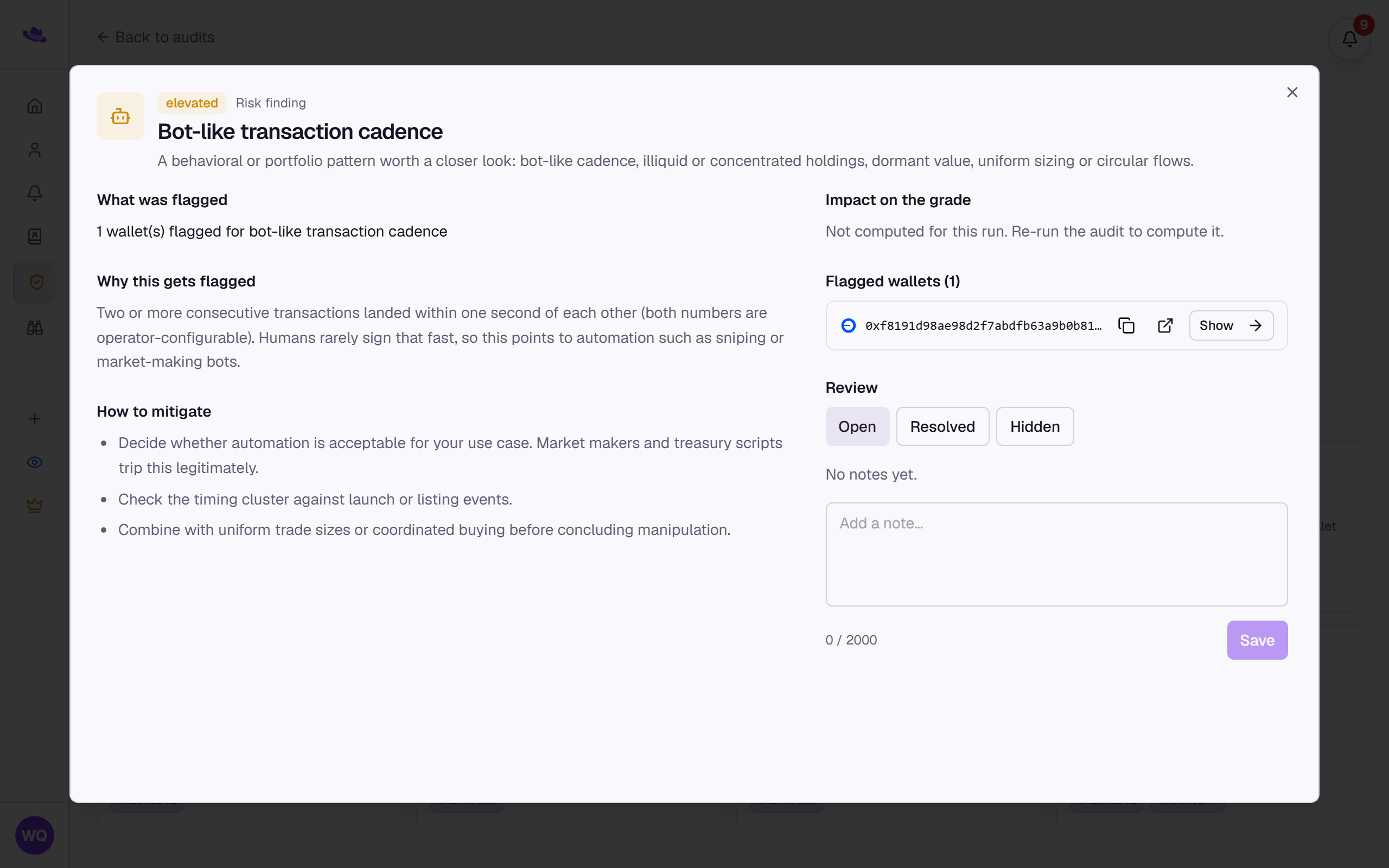
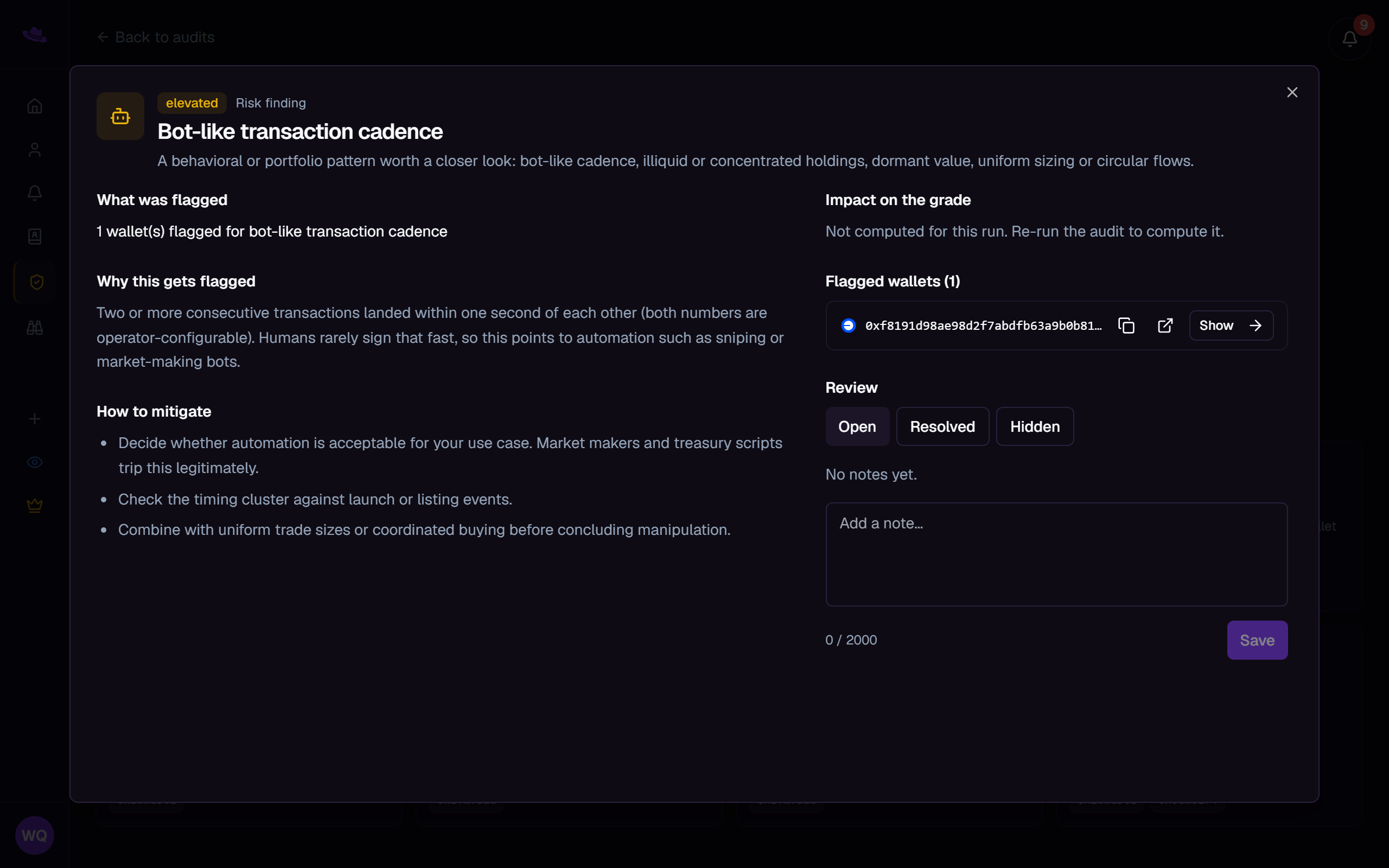
The dialog's left side explains the finding: what was flagged, why it gets flagged, and how to mitigate it. The right side shows the finding's effect on the grade, the flagged wallets with copy and explorer actions, and the Review panel where you set its status and add notes.
Tips
- Marking a finding Resolved or Hidden never changes the risk grade, the value at risk, or the severity counts; the report says so in the Review panel.
- Hiding a finding drops it from CSV and PDF exports and from the public share link, but the executive summary is written once per run and may still mention it until the audit runs again.
- If a finding's severity or wallet count changed since you last reviewed it, the panel offers Confirm current status so you can acknowledge the new state without writing a note.
Common questions
Does resolving or hiding a finding delete it? No. It just changes its status; select Open again, or the All filter, to see it.
Who can review findings? The audit's owner, an admin, or any invited member.