Members and invites
Inviting someone to a tracking page gives them their own signed-in view of it: the same wallets, alerts, and (depending on their access level) the ability to make changes, without sharing your login.
Steps
Generate an invite link
- From the tracking page itself, select Invite in the header. Wallet Sleuth generates a link and copies it to your clipboard right away.
- Alternatively, from Settings, then People, then Invites in the sidebar, select Generate Invite Link, then Copy to copy the link shown under Active Invite Link.
- Send the link to the person you want to add.
An invite link expires after a short time and stops working once someone joins with it, so generate a new one for each person. Generating a new link (Generate New Link on the Invites page) replaces the current one; the old link stops working immediately.
Revoke a link
On the Invites page, select Revoke next to the active link and confirm in the dialog. Anyone who still has that link can no longer use it.
What the person you invited sees
Opening the link takes them to an invite page showing the tracking page's token name and symbol and a Join Tracking Page button. If they aren't signed in, they see Sign In instead, and land back on the same invite after logging in. Once they join, they're redirected straight to the tracking page. A link that's expired, already used, or doesn't exist shows an explanation instead of the join button.
Manage members
From Settings, then People, then Members, you'll see the page Owner at the top, followed by every member who has joined. A new member starts with Read Only access; as the owner, select their access badge to switch it between Full Access and Read Only. Select the remove icon next to a member to take away their access immediately.
What you'll see
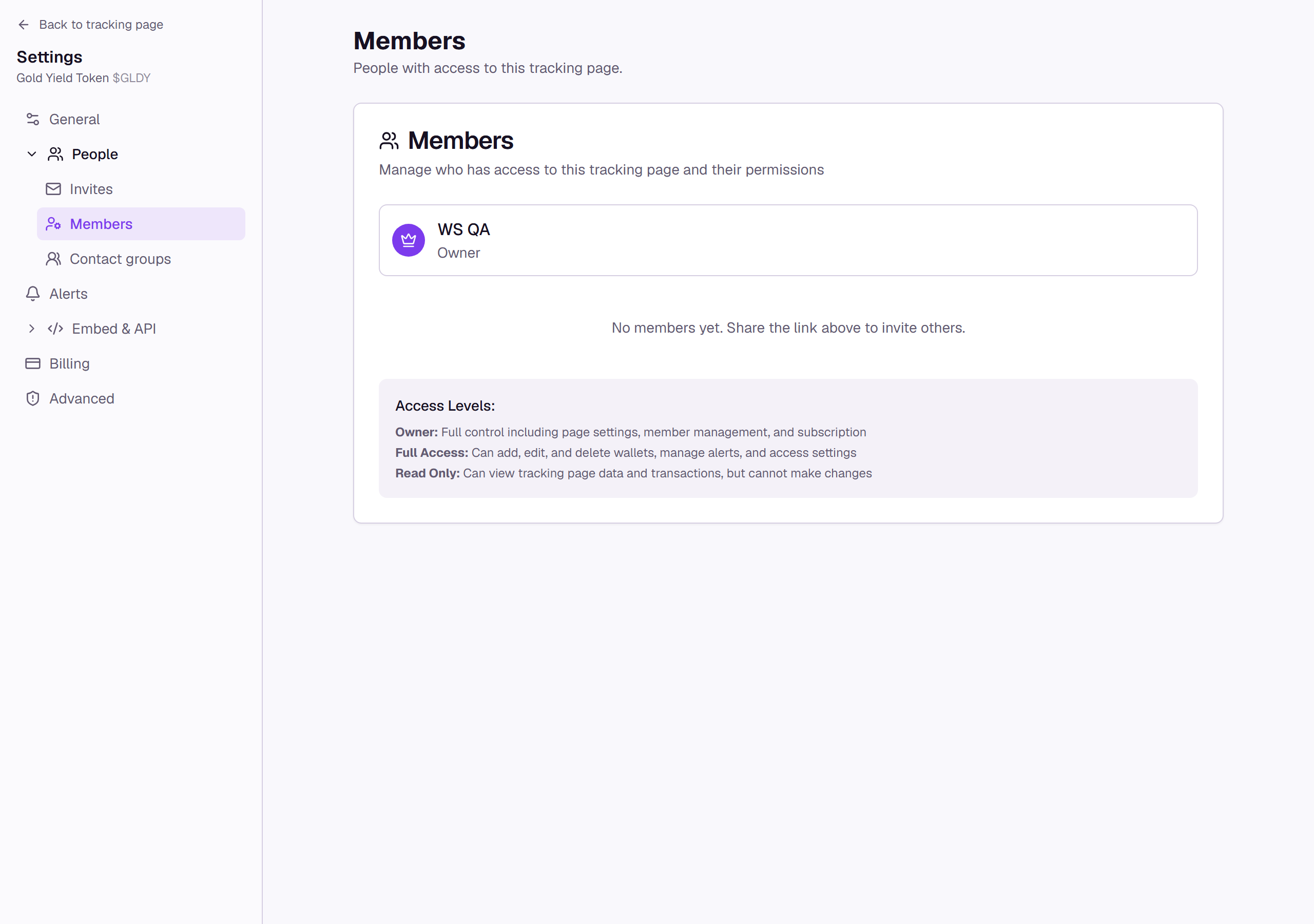
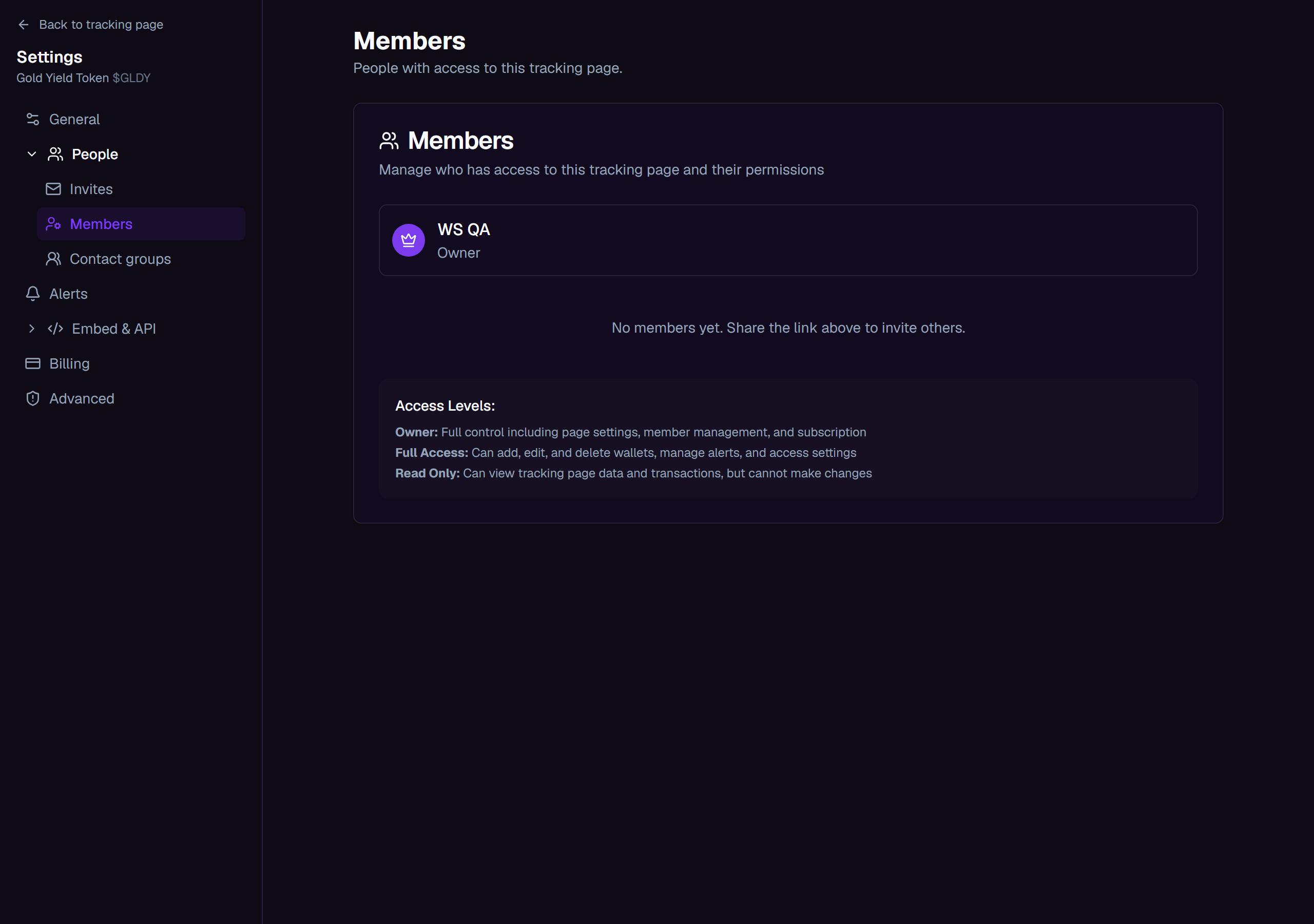
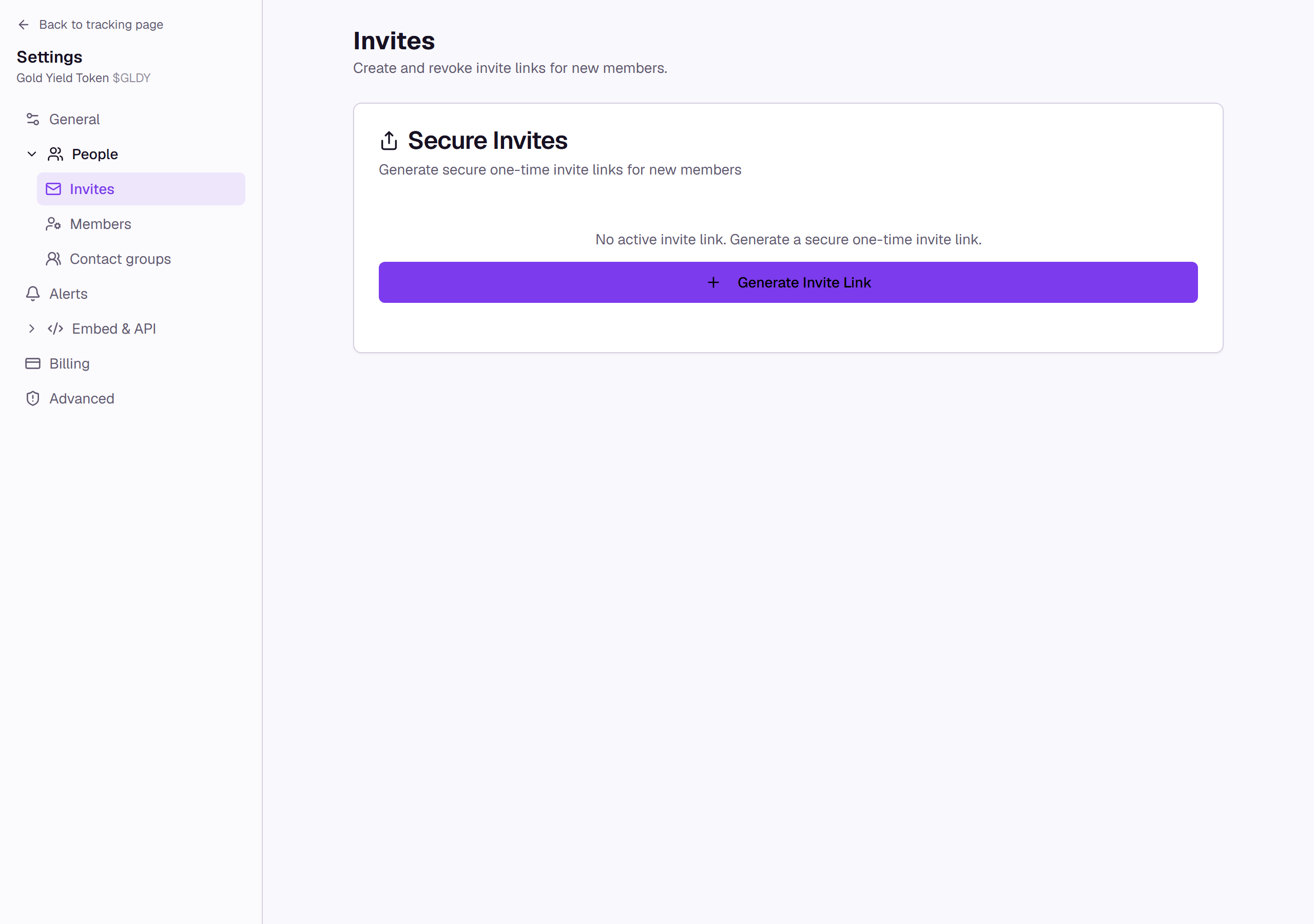
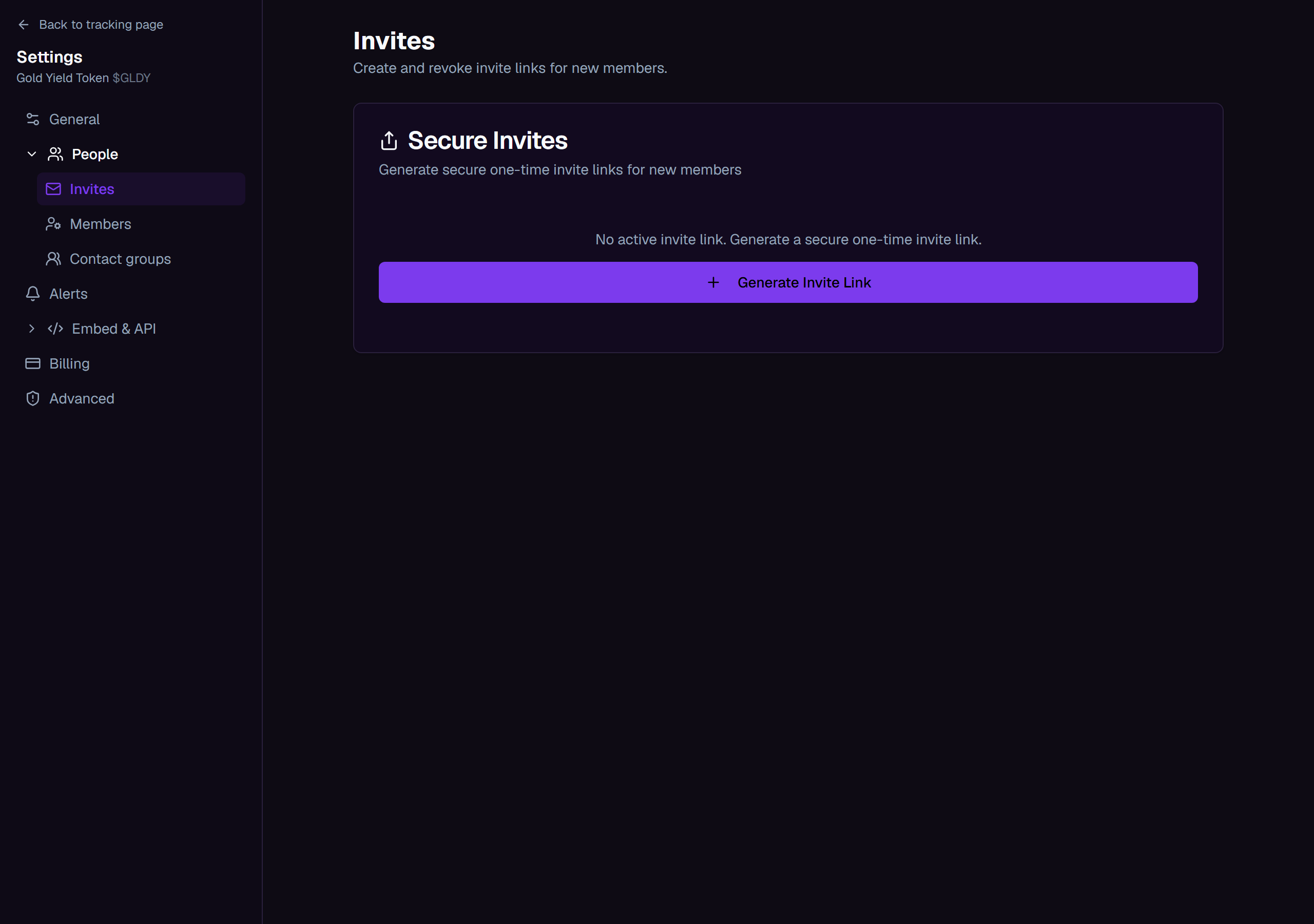
The Members card's own Access Levels legend explains each one, quoted here exactly:
- Full Access: Can add, edit, and delete wallets, manage alerts, and access settings
- Read Only: Can view tracking page data and transactions, but cannot make changes
Common questions
Can a member manage other members or invites? No. Only the owner can generate or revoke invite links, change a member's access level, or remove a member.
Can a member remove themselves from a page? Not from within Wallet Sleuth today; ask the owner to remove you.