Shared and public pages
There are two different audiences for a tracking page: members you've invited, who sign in and see the full dashboard at their access level, and the public, who can view a read-only summary at a link with no account at all.
Steps
What a member sees
A member opens the same tracking page URL as the owner and sees the same header, stats, price chart, and wallet list described in Reading a tracking page. What they can do depends on their access level: Full Access members can add, edit, and delete wallets and manage alerts; Read Only members can look but not touch. Only the owner sees Invites, Billing, and Advanced in the settings sidebar.
Turn on the public page
- From the tracking page, select Settings, then stay on General.
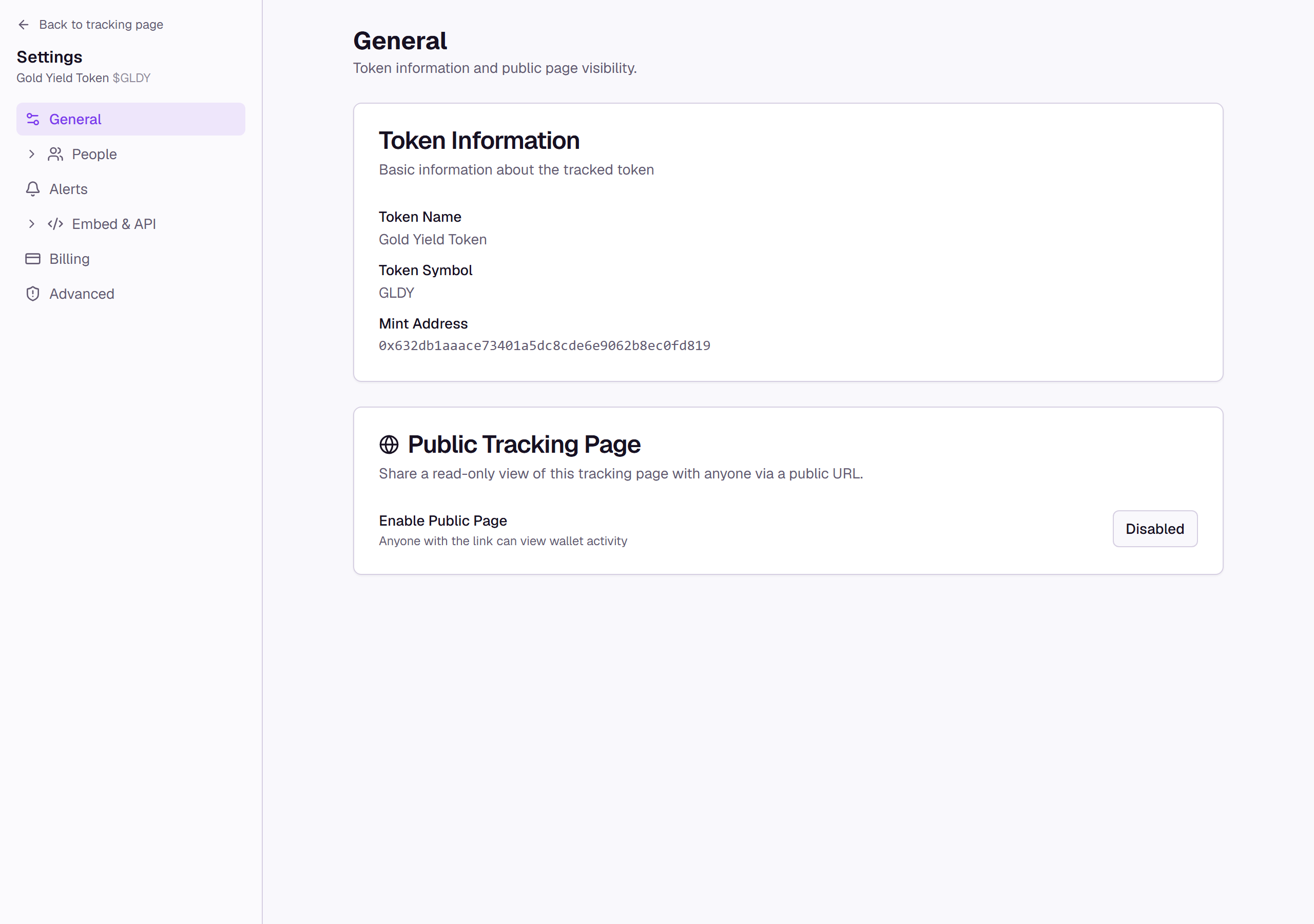
- Under Public Tracking Page, select Disabled to turn it on; the button becomes Enabled.
- Set a Page Title and Public Comments if you want the public page to say something specific, and copy the Public URL to share it.
- Under Wallet Visibility, set a Public alias for any wallet you'd rather label than show by address, and select the eye icon to hide a wallet from the public page entirely. Search the list, or select several wallets to show, hide, tag, or set an alias on them together.
What you'll see
The public page itself, at the URL you copied, shows the token's name, mint address, and explorer link, the same stat strip as the dashboard, your public comments if you added any, and the wallet list. Each visible wallet shows its address, its public alias if you set one, and any tags, but never the private nickname you use on the dashboard. A hidden wallet, and anything nested under it, doesn't appear at all.
Common questions
Does a Read Only member see the public page settings? No, only the owner can reach the Public Tracking Page card.
Can I preview the public page myself? Yes, the Public Preview link on the tracking page (see Reading a tracking page) opens the same page a visitor would see.