Installing and signing in
The Wallet Sleuth iOS app uses the same account as the web app, so there's nothing new to set up beyond installing it and turning on a couple of device settings.
Steps
- On your iPhone, open the App Store listing and install the app.
- Open the app and sign in with the same Email and Password you use on the web app, or select Sign in with Apple or Sign in with Google. Don't have an account yet? See Create your account first, then come back and sign in here.
- On your first sign-in, the app offers to turn on Face ID (or Touch ID, depending on your device). Accept to enable it right away, or skip it and turn it on later from Settings > Biometric Unlock.
- With biometric unlock on, the app locks whenever you leave it and asks for Face ID again when you return; declining the prompt leaves you at the lock screen rather than signing you out. Tap the screen to try Face ID again.
- To get alerts on your lock screen, open Settings and turn on Push Notifications. The first time, iOS asks you to allow notifications; accept the prompt.
What you'll see
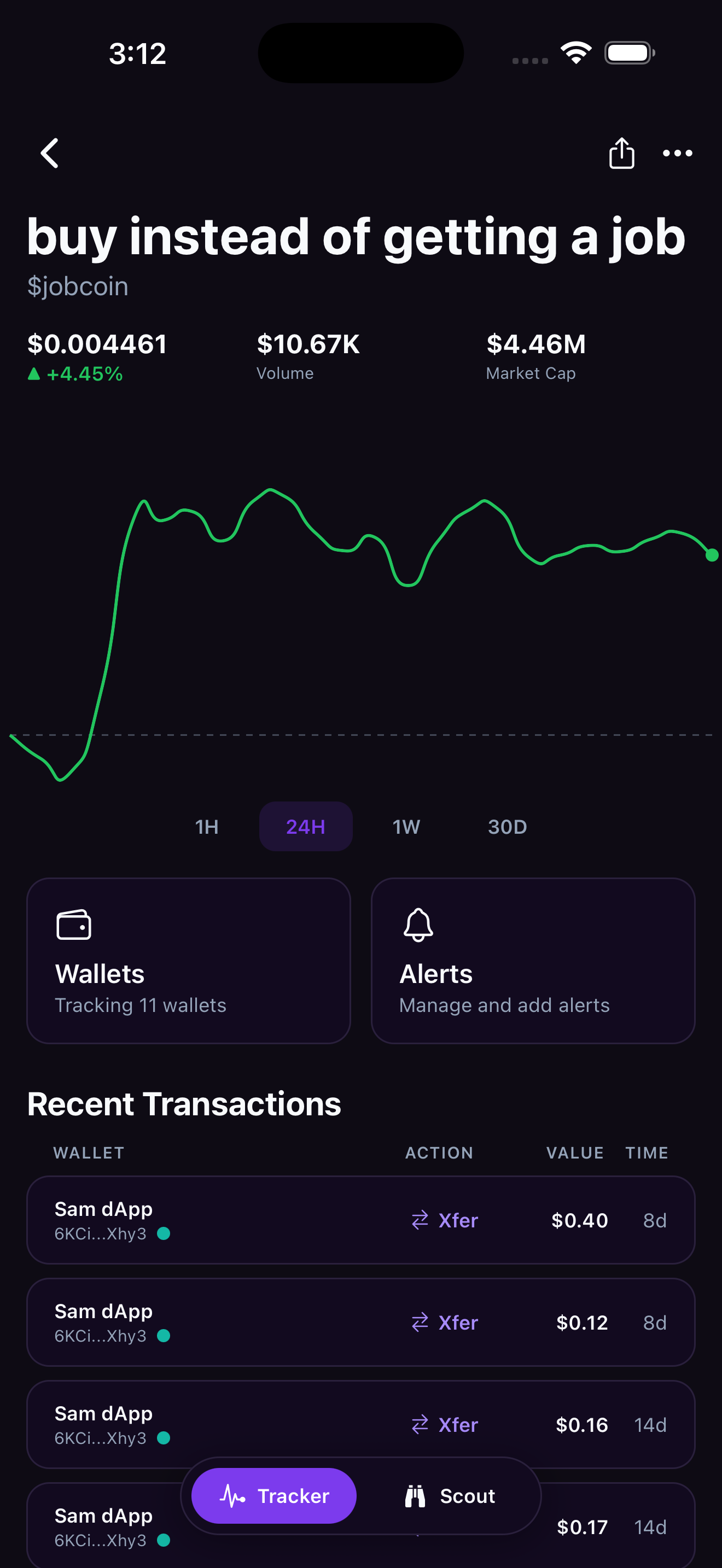
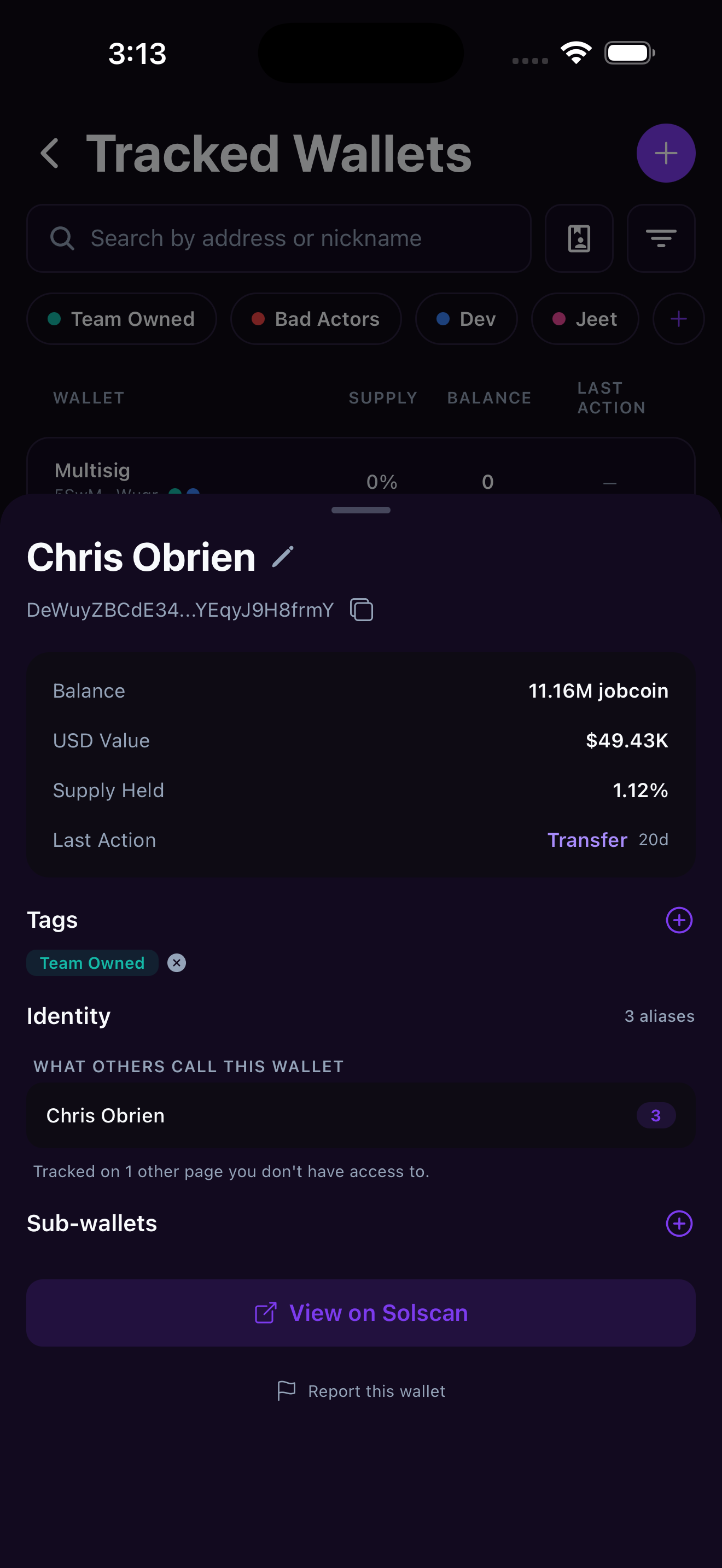
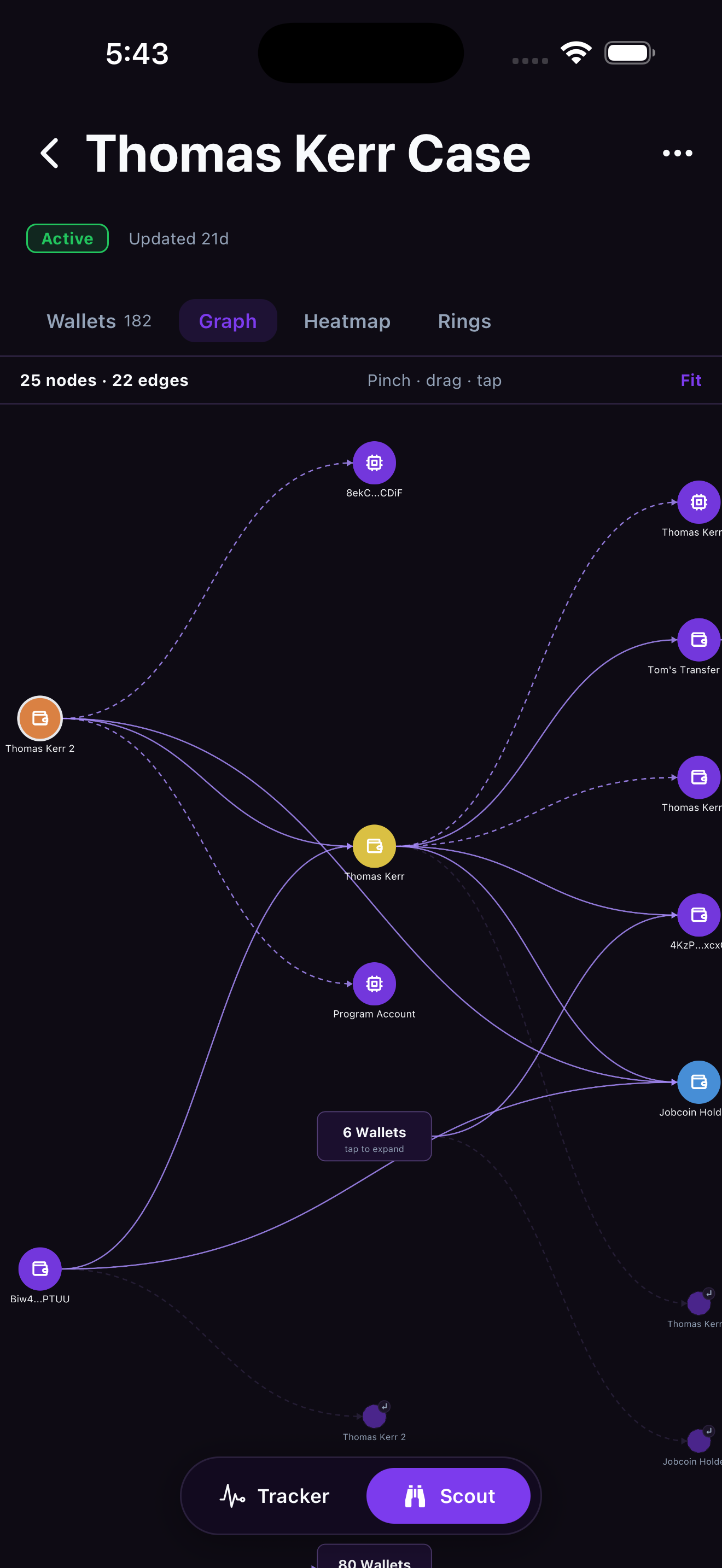
Once you're in, here's a sample of what's waiting on the Tracker and Scout tabs:
Common questions
Is there an Android app? Not yet. Wallet Sleuth is available on the App Store for iPhone only; there's no Google Play listing at this time.
I turned off the push notification prompt by accident. Now what? Open the iPhone Settings app, find Wallet Sleuth, and turn notifications back on there, then flip the toggle in the app's Settings again.
Do I need to set up SMS or Telegram again on mobile? No. Those are account-level settings from the web app; mobile shows their status and lets you toggle them, but consenting to SMS or linking Telegram happens on the web app. See Notification channels.