Allium and Telegram
Wallet Sleuth connects to a couple of outside services from your profile: Allium, for importing wallet lists from your own saved queries, and Telegram, for receiving alerts. Telegram is set up on the same profile page but covered in full under Notification channels; this page covers connecting Allium and points you to where Telegram lives.
Steps
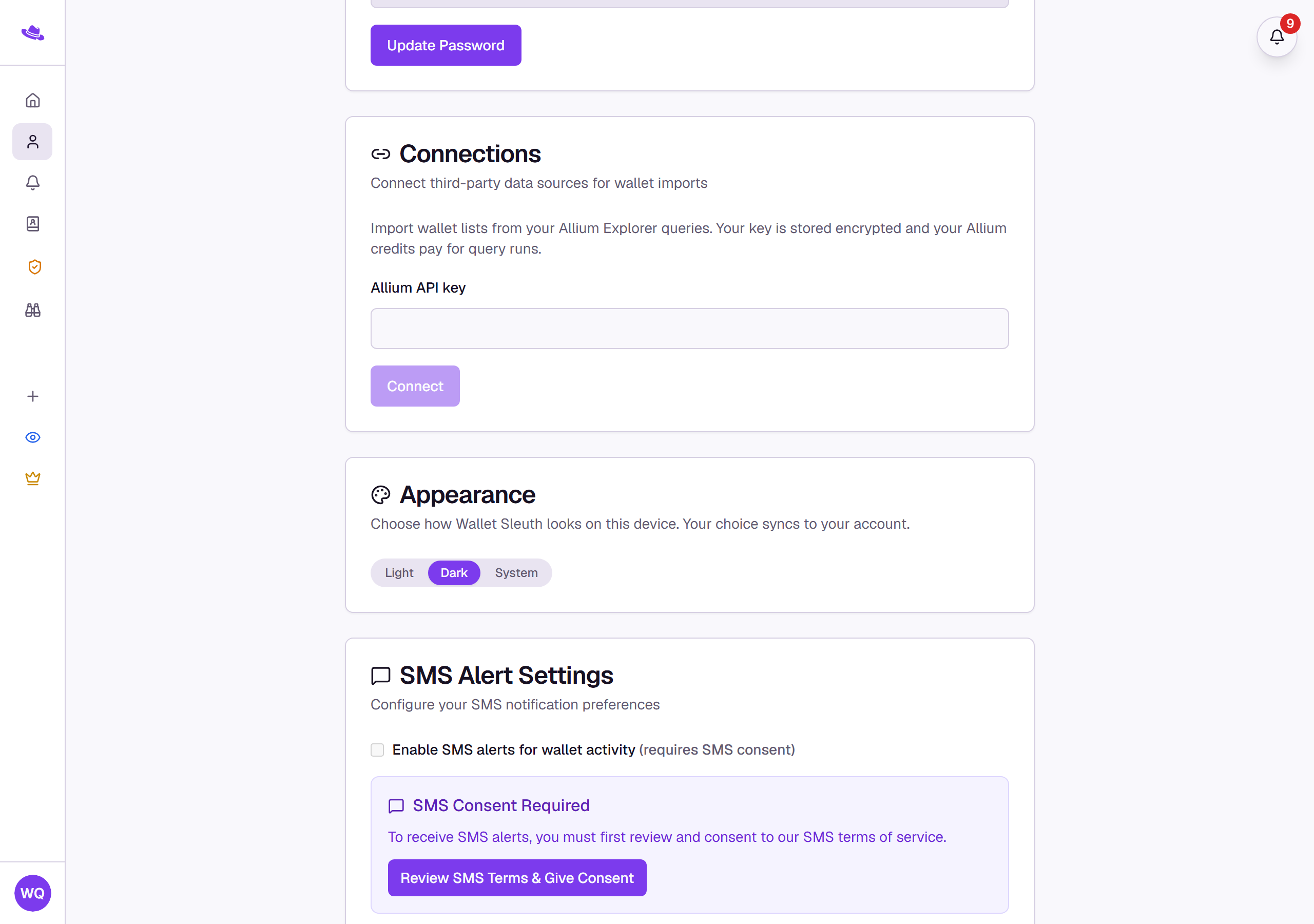
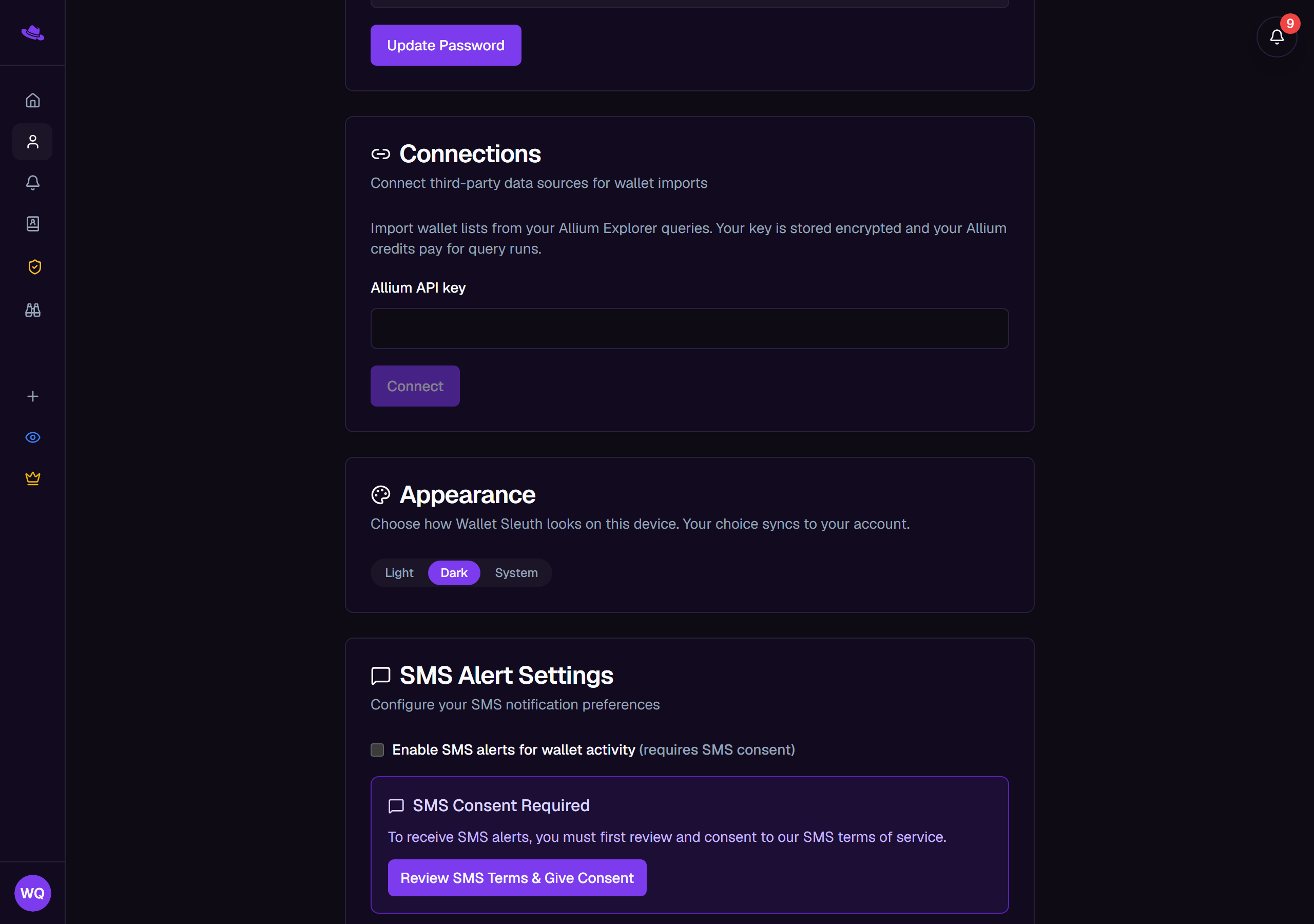
Connect Allium
- Open your Profile and scroll to the Connections card.
- Enter your Allium API key and select Connect. Wallet Sleuth checks that the key works before saving it.
- Once connected, the card shows the connection with the last 4 characters of your key and the date you connected.
- To remove it, select Disconnect and confirm in the dialog. You can reconnect at any time with a new key.
Telegram
Telegram alerts are set up from the same profile page, under Telegram Settings; see Notification channels for the full walkthrough of linking your account and what it enables.
What you'll see
Tips
- Connecting Allium doesn't run anything on its own; it makes Import from Allium available when adding wallets to a tracking page or creating an audit.
- Your own Allium credits pay for the query runs you import from; Wallet Sleuth doesn't meter them separately.
- Disconnecting deletes the stored key; anything you already imported stays on your tracking pages or audits.
Common questions
Do I need Allium to use Wallet Sleuth? No. It's optional, useful only if you already run saved queries in Allium Explorer and want to bring their results in as a wallet list.
Is my Allium key visible anywhere after I connect it? No. Wallet Sleuth stores it encrypted and only ever shows its last 4 characters back to you.