Batch actions and the table
The wallet table is where you search, sort, and act on the wallets tracked by a page, one at a time or many at once.
Steps
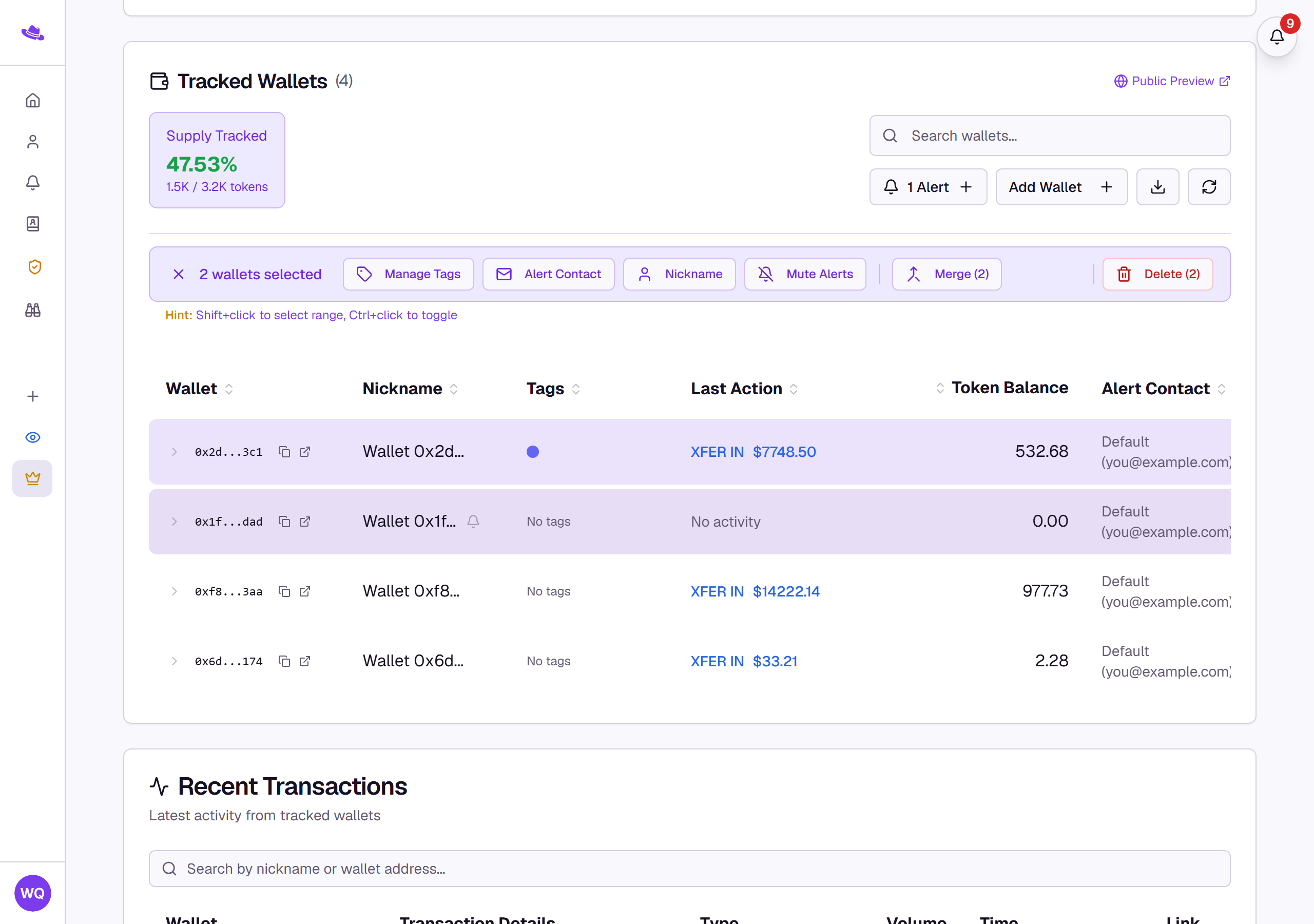
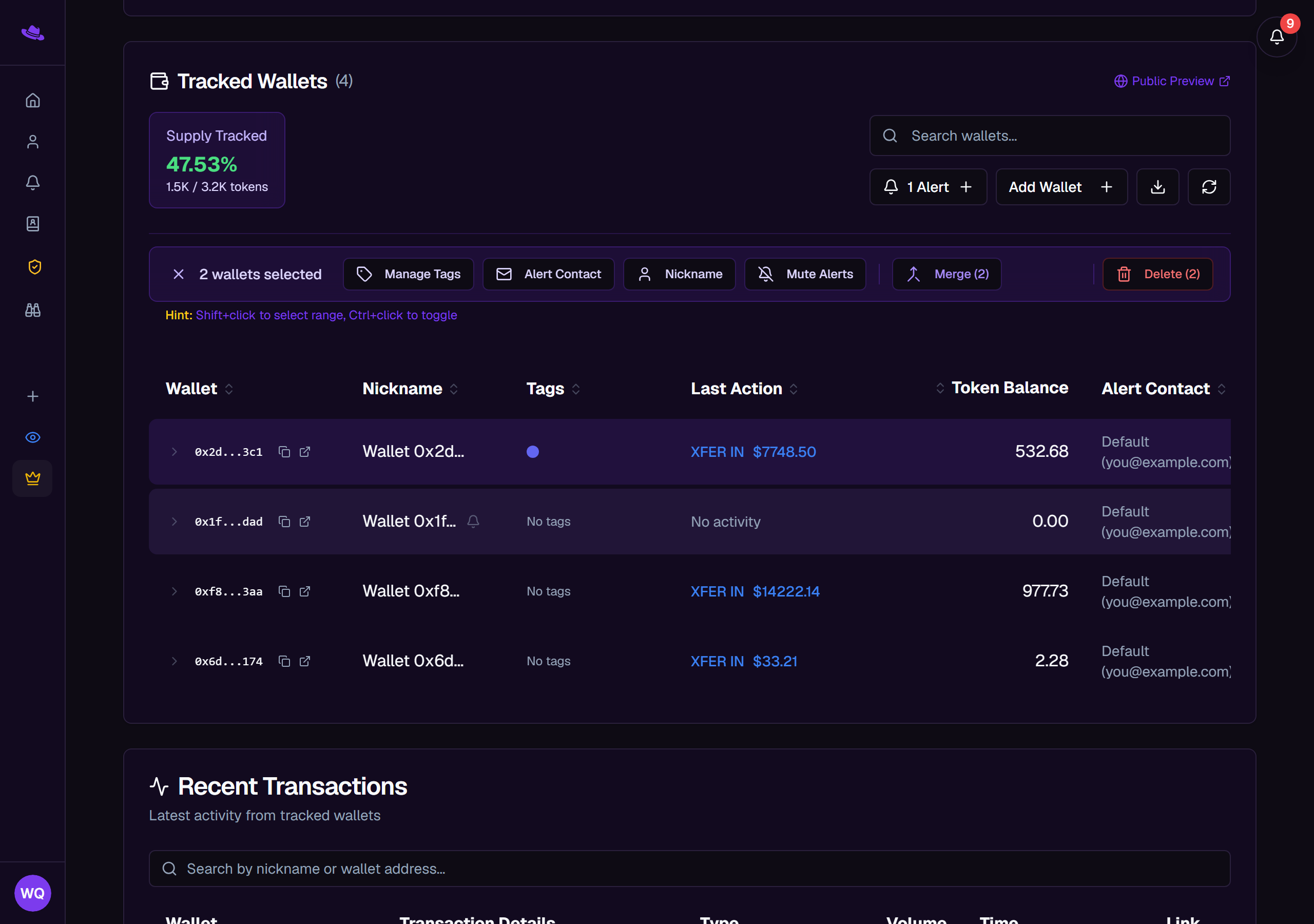
Select wallets
- Select a row to select just it; selecting the same lone selection again clears it.
- Shift+click selects every row between your last click and the new one.
- Ctrl+click (Cmd+click on a Mac) toggles one row on or off without touching the rest of the selection.
- Escape clears the current selection.
A bar appears above the table once at least one wallet is selected, showing the count and, on a page where you can edit or delete wallets, the actions below.
Act on the selection
- Select one or more wallets.
- In the bar that appears, choose an action: Manage Tags, Alert Contact, Nickname, Mute Alerts (or Unmute Alerts if any selected wallet already has alerts muted), Merge once two or more are selected, Ungroup when a selection includes a wallet with sub-wallets, Detach when a selection includes a sub-wallet (its tooltip reads "Move selected wallet(s) out of their parent cluster"), or Delete if you have permission to remove wallets.
- Select the X next to the count to clear the selection when you're done.
Sort and reorder
- Select a column header, Wallet, Nickname, Tags, Last Action, Token Balance, or Alert Contact, to sort by it.
- Select it again to reverse the direction, and a third time to remove that column from the sort.
- Selecting a different header adds it as another sort level instead of replacing the first; each active column shows a small priority number, and a Clear sort link appears above the table while any sort is active.
Sorting a column is a view-only order and doesn't change what's saved. To alphabetize wallets by nickname and keep that order, use Sort A-Z in the toolbar instead, which writes the new order to each wallet. On a page with edit access, you can also drag a top-level wallet by the grip handle that appears on hover to reorder it by hand; dragging is unavailable while a column sort is active.
What you'll see
Tips
- The Search wallets... box filters by nickname or address as you type.
- Selecting a tag chip above the table filters to wallets carrying that tag; selecting more than one combines them. See Nicknames and tags for creating and managing tags.
- Export wallets as CSV downloads whatever the table is currently showing (or every wallet, if nothing is filtered), including address, nickname, tags, balance, last action, parent, depth, and when it was added.
- Refresh wallet data re-fetches every tracked wallet's on-chain token balance in one request and updates the table; it doesn't touch nicknames, tags, or contacts.
Common questions
I selected wallets but don't see Delete, or any edit actions. These only appear on a page where your access level allows editing or deleting wallets.
My sort didn't survive reloading the page. Clicking a column header only changes the current view. Use Sort A-Z if you want the alphabetical order to persist.